
Usage & Budgets
Token usage and costs are tracked by currency through charts, agent rankings, alerts, hard limits, and anomaly detection. Full project credit is managed separately in Billing.
On this page
Overview
The Token Usage page shows token consumption and token cost. connic/* charges use EUR. BYOK usage keeps the USD or EUR currency configured for that model; when a Project uses both currencies, both values are shown.
Daily Token Cost Chart
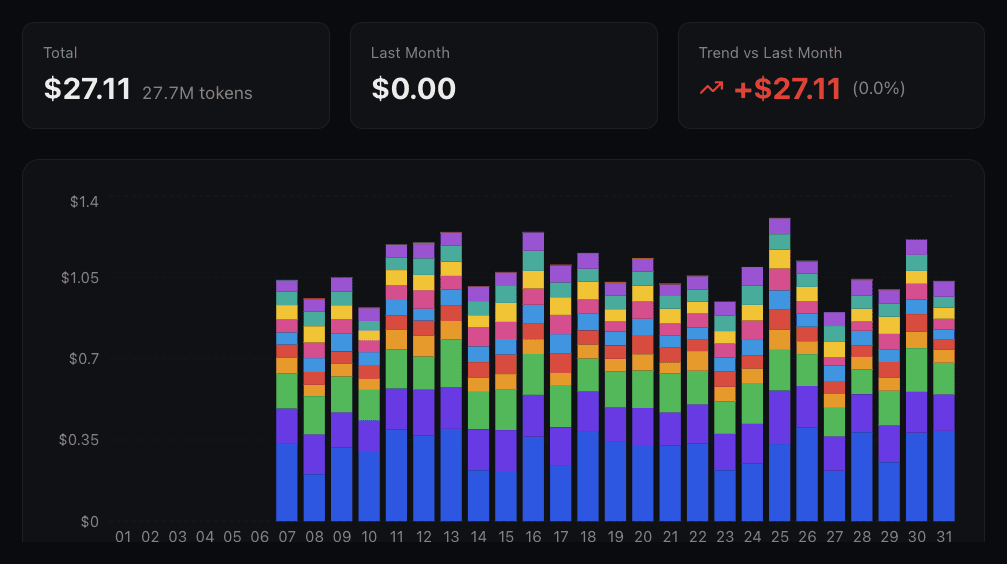
The chart at the top of the Token Usage page shows a stacked bar for each day of the month, broken down by agent. Judge evaluation tokens are included in each agent's total.
Use the month selector to navigate between months. The chart goes back to the month the project was created.
Summary Cards
Three summary cards appear above the chart:
| Card | Description |
|---|---|
| Current Total | Total token cost for the selected month. For the current month, also shows the projected total based on daily average so far. |
| Last Month | Token cost and token usage for the previous month, shown in each currency that has a value. |
| Trend | Amount and percentage difference from the previous month, calculated separately for EUR and USD. |
Agent Ranking
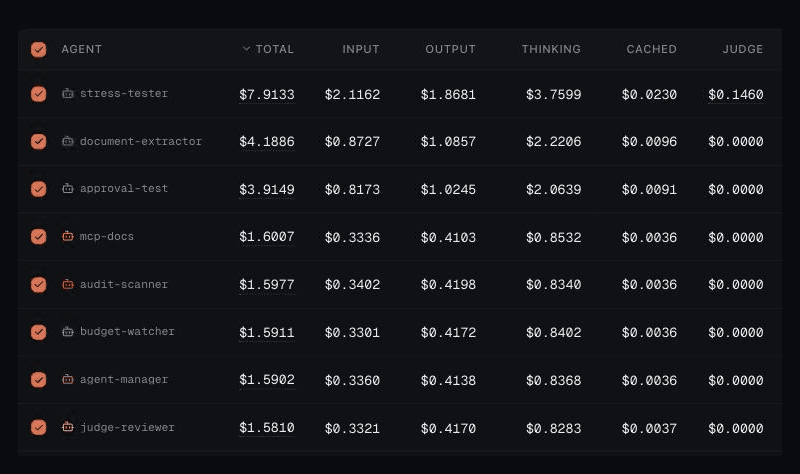
Below the chart, the table shows every agent or model for the selected month. Sort by name, run count, or any displayed currency; EUR and USD remain separate columns when both are present.
Each agent row includes a full token cost breakdown:
| Column | Description |
|---|---|
| Token Cost | Combined cost across all token categories including judge evaluations. |
| Input | Cost of prompt/input tokens (excluding cached portion). |
| Output | Cost of model output tokens. |
| Thinking | Cost of reasoning/thinking tokens (when enabled). |
| Cached | Cost of cached input tokens using the configured cached rate, where available. |
| Judge | Cost of judge evaluation runs associated with this agent. |
Token Cost Alerts & Limits
Token cost alerts and limits act on model-token cost, not the complete Project credit balance. Each entry has a type, scope, period, and threshold amount in either EUR or USD.
Alert vs. Limit
Scope
Each alert or limit has one of these scopes:
| Scope | Behavior |
|---|---|
| Global | Applies to all token cost across the project. A reached global limit prevents queued runs from starting while it is active. |
| Environment | Applies to one or more specific environments. A reached environment limit prevents queued runs for those environments from starting while it is active. |
| Agent | Applies to one or more agents by name. A reached agent limit prevents matching queued runs from starting while it is active; other agents continue normally. |
Period
Choose whether the threshold resets daily or monthly:
- Monthly: Token cost is accumulated from the 1st of the month. Resets on the 1st of the next month.
- Daily: Token cost resets at midnight UTC each day.
Progress Tracking
Each alert and limit shows a visual progress bar when every applicable model call has an exact token cost. If a call cannot be priced, the current value is shown as unavailable instead of displaying a partial total.
Token Cost Anomaly Detection
When enabled, Connic compares each completed run's token cost with that agent's 30-day rolling average. If a run is significantly more expensive than normal, an alert is sent.
Configuration
| Setting | Description |
|---|---|
| Enabled | Toggle anomaly detection on or off for the project. |
| Multiplier | The threshold multiplier. Default is 3x, meaning a run is flagged if it costs more than 3 times the rolling average. |
Token Cost Reports
Automated email reports keep EUR and USD token costs separate and include only the currencies used during the reporting period. Reports clearly mark incomplete coverage and omit calls without exact costs from cost rankings. Two report types are available:
Enable or disable each report type from the Token Usage page. Delivery preferences (which team members receive the email) can be managed in Settings > Notifications, where token cost reports appear as dedicated notification types.
Notification Settings
Token-cost events are integrated into the Project notification system. Each team member can independently control which notifications they receive and through which channel.
| Event Type | In-App | Description | |
|---|---|---|---|
| Token Cost Alert Triggered | Yes | Yes | A token-cost threshold was crossed. |
| Token Cost Limit Triggered | Yes | Yes | A hard limit was reached and matching runs are held. |
| Token Cost Anomaly Detected | Yes | Yes | A run's token cost significantly exceeded its rolling average. |
| Weekly Token Cost Report | Yes | N/A | Email-only weekly token-cost summary. |
| Monthly Token Cost Report | Yes | N/A | Email-only monthly token-cost summary. |
Member preferences are managed under Settings > Notifications. Spend reports are email-only. Enterprise projects can route token-cost alerts, limits, and anomalies to a signed webhook channel.
How token costs are calculated
Token Usage recalculates recorded model calls from the pricing currently configured in Connic. connic/* costs use the current published EUR catalog rate, while BYOK costs use the current USD or EUR pricing definition that applies to the call date. Reporting currencies remain separate and are never converted or combined. These reporting values do not change the Project-credit debit recorded for managed inference.
The four token categories (input, output, thinking, cached input) are priced independently. Cached input tokens are a subset of input tokens and are charged at the published cached rate when the supplier reports a cache hit. Cache creation and input without a published cache tariff use the input rate. Audio tokens can have separate rates within each category. Select Text or Audio in the pricing drawer to configure its base prices and tiers; audio usage is included in the totals once.