Team & Permissions
Reusable permission groups control project access and define what each team member can view, configure, and deploy.
On this page
Overview
Every Connic project has one owner and any number of members. What a member can do is not fixed by a role: it is the sum of the permission groups assigned to them. Manage members, groups, and the project security policy in Project Settings → Team & Permissions.
Owner and members
| Role | What it means |
|---|---|
| Owner | Exactly one per project. Always has full access, including deleting the project and transferring ownership. The owner's access cannot be narrowed through groups. |
| Member | Everyone else. A member holds the combined permissions of every group assigned to them, and must belong to at least one group. |
Every project starts with two groups: Admin (every permission) and User (a read-and-operate baseline). These are editable groups, not fixed roles. They can be edited, deleted, or supplemented with custom groups.
Permission groups
A group bundles a reusable set of access permissions. Each permission maps to a single action, organized by area (agents, runs, deployments, connectors, environments, retrieval, billing, team, and more).
- Create a group from the Groups panel, pick its permissions, then assign it to members or include it on an invite.
- A member can hold several groups at once. Their effective access is the union of all of them.
- Creating and editing groups requires the Create / Update / Delete permission groups permissions, which the default Admin group has. Anyone other than the owner can include only permissions they already hold.
- A group cannot be deleted while any member or pending invite still uses it.
What the default groups grant
The two starter groups grant the access below. Because groups are editable, treat this as the default configuration rather than a fixed set of roles.
| Action | Owner | Admin group | User group |
|---|---|---|---|
| View agents, runs & logs | |||
| Trigger agents | |||
| Delete runs | |||
| Deploy | |||
| Manage connectors | |||
| Manage retrieval | |||
| Edit project settings | |||
| Manage team & permission groups | |||
| Manage environments | |||
| Manage billing | |||
| Delete project or transfer ownership |
Deleting a project and transferring ownership stay with the owner alone. No group grants them, not even one that holds every permission.
Inviting members
Anyone with the Invite members permission (the owner and the default Admin group have it) can add people from the Invite panel:
Enter email
Enter the email address of the person to invite.
Choose permission groups
Select one or more groups whose permissions are already included in the inviter's access. The User group is selected by default, but another group may be required. The owner can select any group. At least one group is required, and the selection can be changed later.
Send invite
The invitee receives an email and an in-app notification, and the pending invite appears on their Connic projects page. They can accept or decline. On acceptance, Connic verifies that the inviter still has Invite members and holds every permission in the selected groups before adding the member.
Managing members
The team list supports these actions:
- Change a member's groups: use the groups selector next to their name to add or remove groups, which replaces their whole set (requires Update members). Anyone other than the owner can assign only groups whose permissions they already hold.
- Remove a member: revoke their access to the project (requires Remove members). A member cannot remove themselves or the owner.
- Cancel a pending invite: withdraw an invitation before it is accepted (requires Invite members).
The owner can always do all three. Any other member needs the matching permission and, when changing groups, can grant only permissions they already hold.
Transferring ownership
Each project has exactly one owner, and only the owner can hand it off. In Team & Permissions, choose Make owner next to a member and confirm. The recipient must have room under their own project limit to accept.
Security policy
The Team & Permissions page also holds the project security policy. Turn on Require two-factor authentication to require every member's current sign-in to include 2FA before project access. Opening a protected project redirects members to set up a factor or verify an existing one, then returns them to the same project. Normal Connic login remains available. The member changing this policy must first sign in with 2FA and needs the Edit project settings permission.
API key permissions
API keys use the same action-level permission catalog as team groups. A key can only narrow the live permissions of its owner; it can never grant access the owner does not have. Project 2FA still applies to interactive user sessions, while API keys remain non-interactive credentials.
Create or edit keys under Project Settings → API Keys & MCP Auth. A key starts with every API-supported permission available to its owner. Clear individual permissions to create a narrower selection, or select all to follow every eligible permission.
- The picker shows the same permission labels and categories used for team permission groups.
- The owner's group membership is evaluated on each API request.
- Permission edits apply immediately without rotating or revealing the key.
See the REST API docs for full details on authentication, rate limiting, and available endpoints.
Audit log
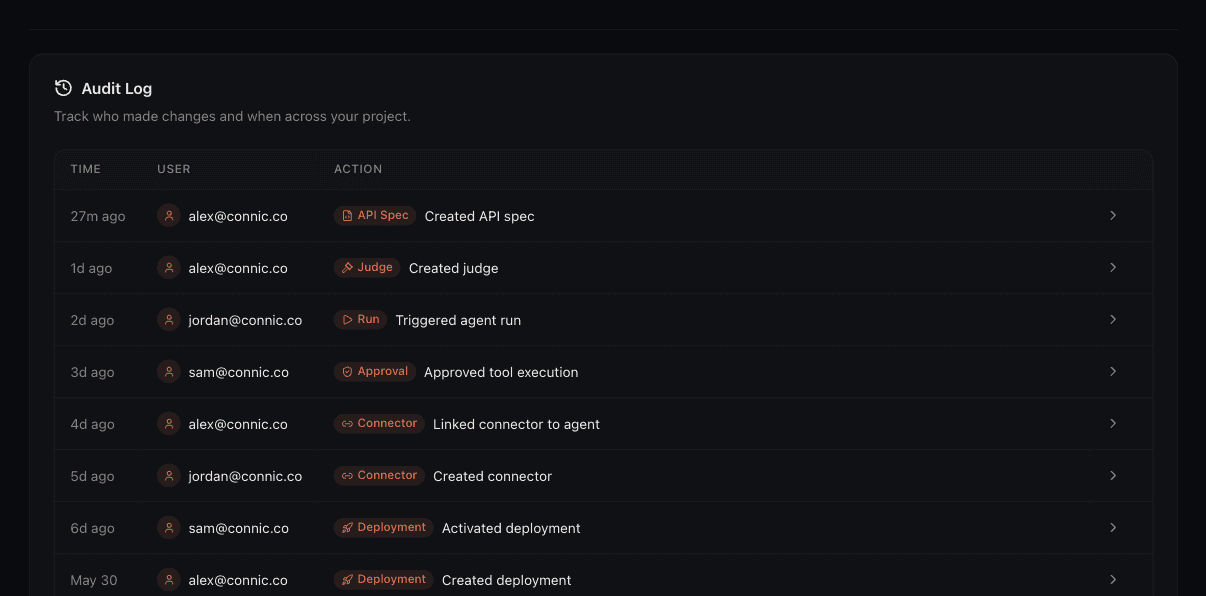
Project actions are recorded in the audit log at Project Settings → Audit Log (viewing it requires the View audit log permission). Each entry captures:
- Who performed the action and when
- The action and affected resource values where applicable (secret values are masked)
- The action category, such as project, deployment, connector, run, judge, approval, member, invite, billing, and Git
Filter the log by time range, action type, resource type, or user, or search across entries. Project members cannot edit or delete individual entries. Entries expire under the plan retention shown on the page.