
Approvals (HITL)
Gated tool calls require human approval. The run pauses until a team member approves or rejects the action. Gates are configured per tool, with webhooks for external systems.
On this page
How It Works
Add an approval block to the agent YAML to gate specific tools behind human approval. When the agent calls a gated tool, the run pauses and the project team is notified.
Awaiting Approvalapprovals.decide approves or rejects via the dashboard or APIon_rejection: fail): run fails with the rejection reason (default)on_rejection: continue): run resumes, tool returns rejection message, agent adapts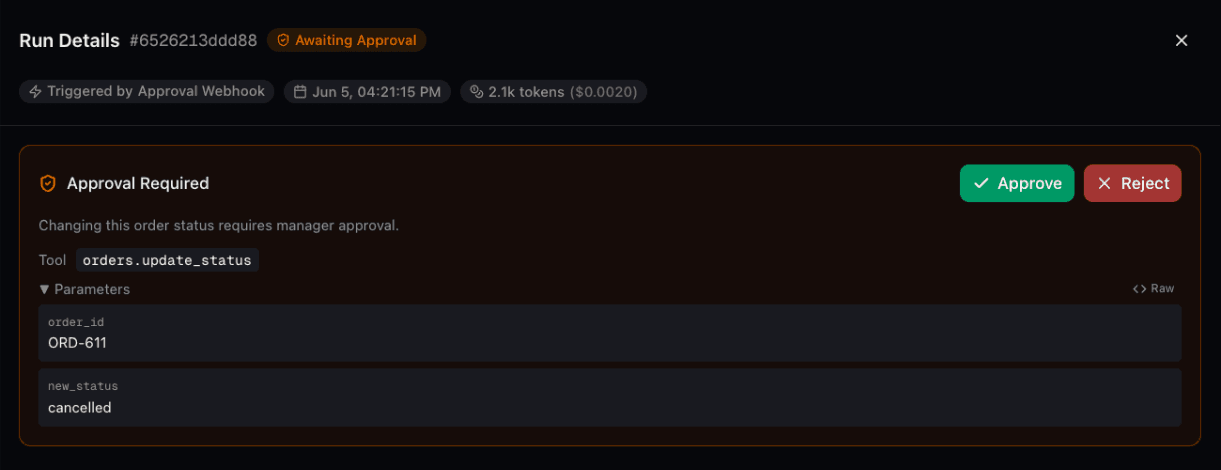
Quick Start
Add an approval block to any agent YAML to gate specific tools:
approval:
  tools:
    - order_tools.delete_order
    - db_delete
  timeout: 3600
  message: "This action requires human approval before proceeding."
On an LLM agent, define a named input under approval.inputs to ask for content such as an MFA code. Connic automatically creates a tool for the agent and returns the human's text as its result.
approval:
  inputs:
    - get_mfa:
        prompt: Use this tool to request a 2FA code when needed.
        params:
          - reason: str
          - account_email: str
        label: MFA code
        sensitive: true
  timeout: 300
Input names must be ASCII identifiers of at most 64 characters, such as get_mfa. They must be unique, cannot use reserved tool-discovery names, and cannot collide with tools, discoverable_tools, or approval.tools. The agent sees the name unchanged. Connic creates the tool without a Python module lookup, Python function, or top-level tools entry. Generated input tools count toward the 100-tool agent limit. prompt tells the agent when to use the tool; label is the human-facing input label. Dotted references remain valid for existing tools under tools and approval.tools.
Optional params define context the agent must supply with each request. Parameter names must be unique ASCII identifiers; Python keywords and context are not allowed. Here, reason and account_email appear above the human input field. Every declared parameter is required; extra arguments are rejected. Supported types are str, int, float, and bool. Without params, the tool takes no arguments.
sensitive: true masks the input, encrypts the stored response and affected session data, and redacts the literal response from captured logs and traces. The model still receives the text as a tool result. This does not cover transformed copies or data sent by custom tools to external systems. Without sensitive, the input is visible text.
After deployment, calls to the configured tools pause the run and notify the project team. See the full agent configuration reference for all available options.
Full Example
A complete agent with one ungated tool and two approval-gated tools:
version: "1.0"
name: order-manager
type: llm
model: connic/gpt-5.6-luna
description: "Manages orders with approval-gated destructive actions"

system_prompt: |
  You are an order management assistant.
  Use lookup_order to find orders, process_refund for refunds,
  and cancel_order for cancellations.

  If a tool responds with "awaiting_approval", tell the user
  the action is pending human review.

temperature: 0.3

tools:
  - order_tools.lookup_order
  - order_tools.process_refund
  - order_tools.cancel_order

approval:
  tools:
    - order_tools.cancel_order
    - order_tools.process_refund
  timeout: 600
  message: "This order action requires manager approval."
In this example, lookup_order runs freely. Only cancel_order and process_refund are gated. The agent can look up order details first, then pauses only when it tries to perform a destructive action.
Conditional Approvals
Approval tools support condition expressions, the same syntax as conditional tools. When a condition is set, approval is only required when the expression evaluates to true. This supports gates based on the actual parameters of the tool call and middleware context values.
approval:
  tools:
    - order_tools.cancel_order                                          # always requires approval
    - order_tools.process_refund: param.amount > 50 and not context.is_admin  # conditional
  timeout: 600
message: "This order action requires manager approval."Python-like syntax: and, or, not; comparisons == != > < >= <=; membership in, not in; parentheses for grouping; string literals in single or double quotes. Reach into nested objects with dot-paths like context.user.role. A bare path like context.active is a truthy check: it passes when the value is set and not empty, zero, or false. Missing fields make the surrounding predicate fail rather than raising.
param.<key>param.amount reads the amount argument.context.<key>Rejection Behavior
By default, a rejected approval terminates the run with a FAILED status. Set on_rejection: continue to let the agent adapt instead. The tool call returns a rejection message to the LLM, and the agent can try an alternative approach, inform the user, or skip the action.
approval:
  tools:
    - order_tools.cancel_order
    - order_tools.process_refund: param.amount > 50
  timeout: 600
  message: "This order action requires manager approval."
  on_rejection: continue   # agent adapts instead of failing
Modes
fail(default): the run terminates immediately with an error message that includes the rejection reason.continue: the run resumes and the tool call returns a message like “Tool 'X' was rejected: reason. The tool was not executed.” The agent sees this as the tool's response and can adapt its behavior. The same mode applies when the approval times out.
continue mode, if the agent calls the same rejected tool again, it will receive the same rejection message without creating a new approval request. The agent's max_iterations config prevents infinite retry loops.Managing Approvals
The Approvals page in the sidebar shows all approval requests for the current environment. Pending approvals appear at the top.
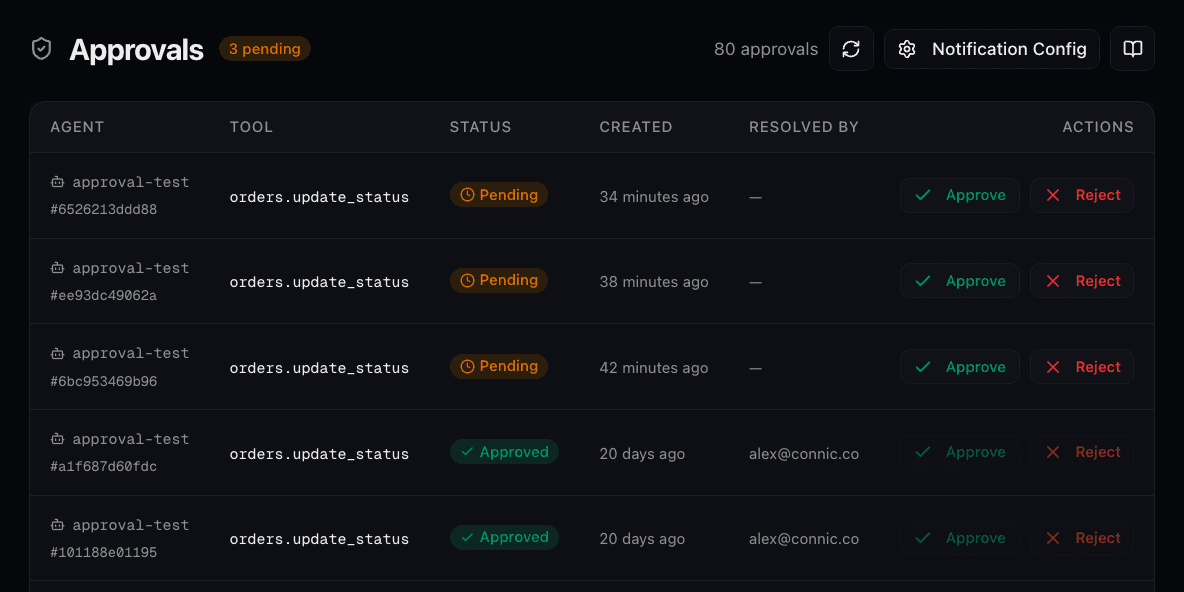
on_rejection: fail (default) the run terminates. With on_rejection: continue the run resumes and the agent adapts. Both modes accept an optional reason.on_rejection: continue is set).Approve or reject from the run detail drawer as well. Click any row in the approvals table or open a run with “Awaiting Approval” status from the Agent Runs page. The approval card shows the tool name, parameters, and action buttons.
For a tool that requires content, select Provide response, enter the requested text, and choose Submit and continue. Empty or whitespace-only responses cannot be submitted. Leading zeros and surrounding whitespace are preserved.
approvals.view grants access to approval requests, approvals.decide grants approve and reject actions, and approvals.configure grants notification-routing configuration.
Notifications
When an approval is needed, project members with approvals.view receive an email and in-app notification by default. Each member can change those preferences in project notification settings. The Notification Config drawer on the Approvals page configures project-channel routing:
- Route approvals to project channels for specific agents (or all agents)
Channel Integration
Enterprise projects can use reusable channels for notifications, approvals, and audit or log drains. To route approval requests to a channel:
- Open Project Settings → Notifications and add a channel.
- Configure the webhook HTTPS endpoint and optional signing secret.
- On the Approvals page, select an environment and open Notification Config.
- Enable the channel and choose which agents it receives approvals for, or leave the selection empty for all agents.
Webhook channels send the payload below to an HTTPS endpoint. An optional signing secret adds X-Connic-Signature and X-Connic-Timestamp headers so the receiver can verify each request. Reviewers approve or reject in Connic or through the REST API.
{
  "type": "approval_requested",
  "approval_id": "a1b2c3d4-...",
  "run_id": "e5f6a7b8-...",
  "agent_name": "order-manager",
  "tool_name": "order_tools.cancel_order",
  "tool_params": {
    "order_id": "ORD-1234",
    "reason": "Customer requested cancellation"
  },
  "message": "This order action requires manager approval.",
  "timeout": 600,
  "environment_id": "f9e8d7c6-...",
  "environment_name": "Production",
  "project_id": "b4c3d2e1-...",
  "channel_id": "c5d4e3f2-...",
  "channel_name": "On-call approvals",
  "created_at": "2026-04-05T10:30:00Z"
}
Multiple Approvals
If an agent calls multiple gated tools in sequence, each triggers a separate pause-approve cycle. The run status goes through:
Each resume loads the saved conversation and tool state without re-executing completed tool calls.
API
Approvals can be managed through the REST API. API keys use approvals.view to list requests, approvals.decide to approve or reject, and approvals.configure to manage notification routing.
For a request with a response_label, approve through POST /projects/{project_id}/approvals/{approval_id}/decide with a nonblank string in response. Keep reason for decision commentary. Ordinary approvals and rejections omit response.
{"status": "approved", "response": "001234"}Through Connic MCP, pass a nonblank response to approve_tool_call when the listed request has a response_label. Omit response for ordinary approvals; reject_tool_call does not accept it.
Audit Trail
Every approval decision is recorded in the audit log with the action, who made the decision, the tool name, and parameters. Approval traces also appear in the run's trace view, showing the wait duration and reviewer details.