
Database
Every environment includes a managed, schemaless database. Data is stored in named collections, queried with expressive filters, and browsed in the dashboard, without migrations, schema setup, or external hosting.
On this page
db_insert or db_upsert first writes to them through database tools.Data model
Each document is free-form with custom fields and no fixed schema. Every document gets three system-managed fields:
_id: auto-generated UUID, unique within the collection_created_at: ISO 8601 timestamp set on insert_updated_at: ISO 8601 timestamp set on every write
# Every document has these system fields alongside custom data:
{
    "order_id": "ORD-001",
    "status":   "pending",
    "amount":   99.50,
    "_id":         "550e8400-e29b-41d4-a716-446655440000",  # auto-generated UUID
    "_created_at": "2026-01-15T10:30:00Z",
    "_updated_at": "2026-01-15T10:30:00Z",
}
Auto-creation
Collections do not require explicit creation. The first call to db_insert or db_upsert creates the collection.
# No setup needed - the collection "orders" is created automatically
# the first time db_insert or db_upsert writes to it
result = await db_insert("orders", {
    "order_id": "ORD-001",
    "customer": "alice@example.com",
    "amount":   99.50,
    "status":   "pending",
})
Collections can also be created manually from the Storage → Database tab in the dashboard.
Dashboard
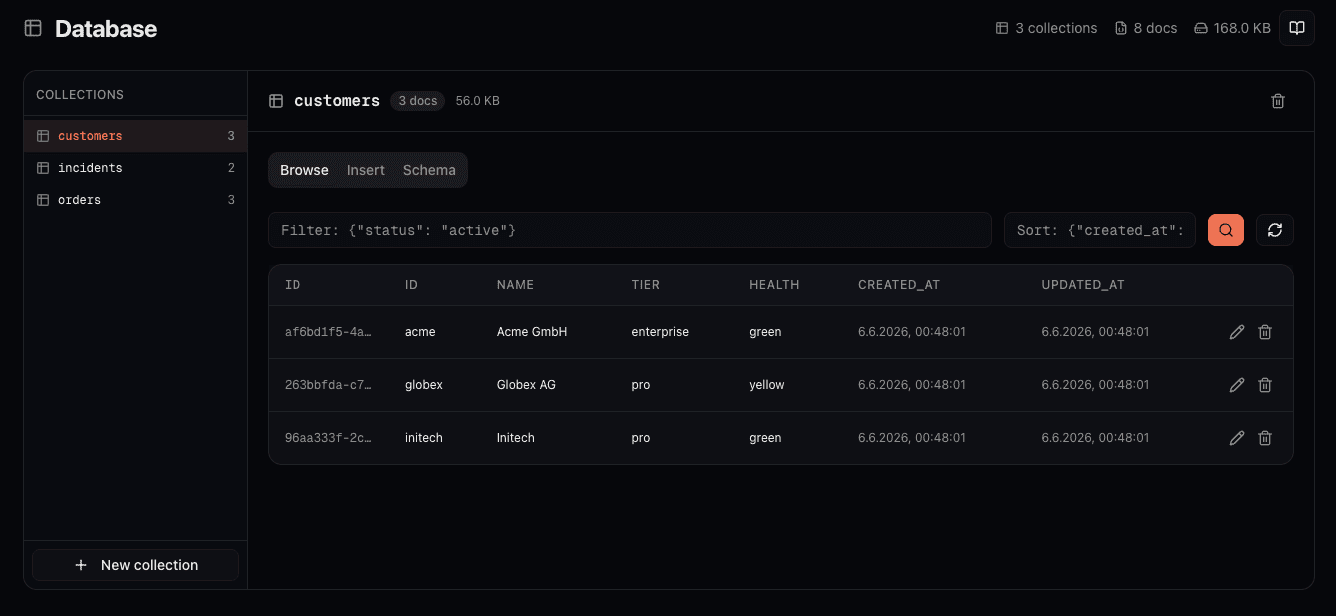
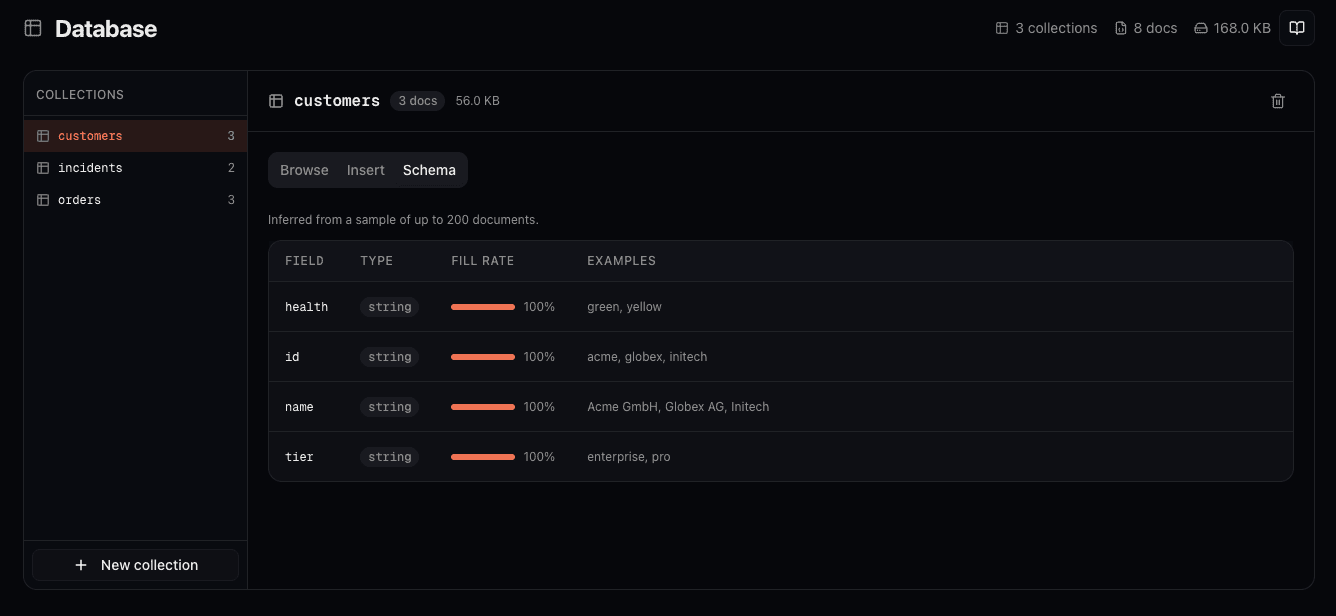
The Storage → Database tab in the project dashboard supports:
- View all collections with document counts and storage sizes
- Browse documents with filter and sort controls
- Generate filters and sort order from plain-language requests
- Insert documents manually
- View the inferred schema: field names, types, and fill rates
- Create and delete collections
Explore the platform
Database tools reference
Full reference for db_find, db_insert, db_update, db_upsert, db_delete, db_count, and db_list_collections.
Retrieval
Semantic search across indexed content.
Environments
How environments are isolated and how the database is scoped per environment.
Observability
See database tool calls in run traces and monitor usage.