
A/B Testing
Compare agent variants side-by-side by routing a configurable percentage of traffic to test agents, then measure cost, latency, and quality differences.
Overview
A/B testing lets you run two versions of an agent simultaneously and compare their performance. A percentage of incoming traffic is routed to a test variant while the rest goes to the original (control). Connic tracks cost, latency, success rate, and judge scores for both, so you can make informed decisions about which version to keep.
Creating Test Agents
Test variants are regular agent YAML files that follow a naming convention: {base-agent}-test-{name}. The part before -test- must match an existing base agent name. The part after is the test identifier.
The base agent stays exactly the same. The variant can change anything: model, instructions, tools, temperature, etc.
name: order-processor
model: gemini/gemini-2.0-flash
description: "Processes incoming customer orders"
system_prompt: |
  You process incoming orders...
tools:
  - orders.process
- inventory.checkname: order-processor-test-faster-model
model: gemini/gemini-2.5-flash
description: "Processes incoming customer orders"
system_prompt: |
You process incoming orders...
tools:
- orders.process
- inventory.check-test- but no matching base agent exists, the deployment will fail with an error.Tool Versioning
Since each agent references tools by module path, you can point a variant at a different tool module to test new implementations. Create a new tool file and reference it in the variant.
name: order-processor-test-new-tools
model: gemini/gemini-2.0-flash
description: "Processes incoming customer orders"
system_prompt: |
  You process incoming orders...
tools:
  - orders_v2.process    # different tool module
- inventory.checkConfiguring Tests
After deploying your test variant, open the base agent's detail page and click Manage A/B Tests in the header.
Deploy your test variant
Push the variant agent YAML alongside the base agent. After deployment, it will appear as an available variant.
Create a new test
Click New Test, select a deployed variant from the dropdown, and configure traffic percentage, minimum sample size, and auto-rollback.
Start the test
Tests are created in Draft status. Click Start to begin routing traffic to the variant.
Monitor and conclude
Click on a test to see side-by-side comparison metrics. When you have enough data, conclude the test and optionally declare a winner.
Reading Results
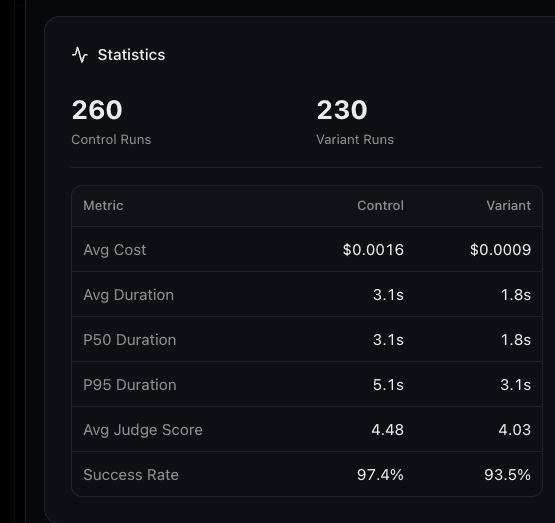
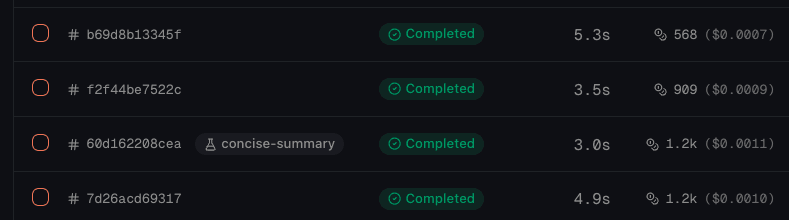
The test detail view shows a side-by-side comparison of control vs. variant:
Deployment & Test Lifecycle
When a new deployment activates, Connic checks all running and paused A/B tests. If a test's variant agent is no longer present in the new deployment, the test is automatically marked as Failed. This means you can safely remove a variant from your codebase and deploy. The test will be cleaned up automatically.
- Start with low traffic: Begin with 5-10% to catch obvious issues before scaling up
- Use judges: Configure judges on the base agent to get automated quality scores for both groups
- Set a minimum sample size: 50-100 runs per group gives more reliable comparisons
- Change one thing at a time: For the clearest signal, each variant should differ in one dimension (model, prompt, or tools)
- Enable auto-rollback in production: Set a failure rate threshold to automatically pause problematic variants
- Test in staging first: Validate that the variant works before running a production A/B test in separate environments