
Judges
LLMs automatically evaluate agent runs against structured scoring rubrics. Sampling rates control evaluation coverage, while quality is tracked over time.
On this page
Overview
Judges use an LLM to evaluate agent performance. A scoring rubric defines criteria and point values for an agent, and connic automatically scores runs against that rubric instead of requiring a manual review of every run.
Each evaluation receives the run's input, output, error, public context, token usage, status, duration, and up to 100 recent traces. It can also include the evaluated agent's system prompt. The judge returns per-criterion scores with reasoning.
Creating a Judge
Navigate to the Judges tab in the project and click New Judge. Each judge is configured with the following:
| Field | Description |
|---|---|
| Name | A descriptive name for the judge, e.g. "Invoice Quality Check" or "Response Accuracy". |
| Agent | The agent whose runs this judge will evaluate. A judge is always scoped to a single agent. |
| Model | The LLM model used for evaluation. Uses the same provider/model-name format as the agent configuration. connic/* models need no provider key; BYOK models use Project credentials. |
| System Prompt | Optional additional instructions for the judge. Use this to provide domain-specific context, examples of good/bad responses, or special evaluation rules. |
| Include Agent System Prompt | When enabled, includes the evaluated agent's system prompt in the evaluation input. |
| Scoring Criteria | One or more named criteria, each with a description and max score. The judge evaluates each criterion independently. |
| Trigger Mode | Automatic evaluates runs when they complete. Manual requires explicit triggering per run. |
| Sample Rate | For automatic judges, the percentage of matching runs to evaluate (1-100%). Set to 100% to evaluate every run, or lower to control costs. |
| Filters | Optional expression over context, input, and output. |
Scoring Criteria
Criteria are the core of a judge configuration. Each criterion defines what aspect of the agent's performance to evaluate. The judge LLM scores each criterion independently and provides reasoning for each score.
Did the agent produce a factually correct and complete response based on the input?
Did the agent use the appropriate tools and interpret their results correctly?
Is the response well-structured, clear, and appropriately formatted?
The overall score is the sum of all criteria scores. In the example above, a perfect score would be 20/20. Average scores are tracked over time on the judge detail page and shown as criteria breakdowns with progress bars.
How It Works
When an agent run completes, connic applies the filter expression and sample rate for every active automatic judge assigned to that agent. Each matching judge evaluates the run asynchronously.
Run completes
The agent finishes processing and the run status is set to completed.
Filter expression and sample rate applied
Each active judge's expression is checked. If the run matches, the sample rate determines if it gets evaluated.
Evaluation queued
Each matching evaluation enters the queued status.
LLM evaluates
The configured model receives the run data and scoring rubric, then returns per-criteria scores and reasoning.
Results stored
Scores, reasoning, and token usage appear on the judge detail page and in the run detail dialog.
Run Filter Expressions
Filter expressions control exactly which runs get evaluated. They use the same Python-like expression engine as observability widgets.
| Example | Description |
|---|---|
| context.tier == 'enterprise' | Evaluate runs tagged with a specific context value. |
| input.channel in ('web', 'email') | Match JSON trigger payload fields when the run input is structured. |
| output.priority >= 3 | Match structured output fields when the agent returned JSON. |
| context.customer_id | Use a bare path as a truthy check for present, non-empty values. |
Expressions support and, or, comparisons, membership tests, and dot-path access on context, input, and output.
Manual Triggering
A judge evaluation can be triggered for any specific agent run, regardless of the judge's trigger mode or sample rate. This is useful for:
- Evaluating a run that was not automatically sampled
- Evaluating a run with the judge's configured criteria and system prompt
- Checking a manual-mode judge before enabling automatic mode
- Spot-checking runs that look suspicious
On the judge detail page, click Trigger Manually and select a run from the dropdown. The dropdown shows recent completed runs for the judge's agent. A run ID can also be pasted directly for older runs.
Viewing Results
Judge results are visible in two places:
Judge Detail Page
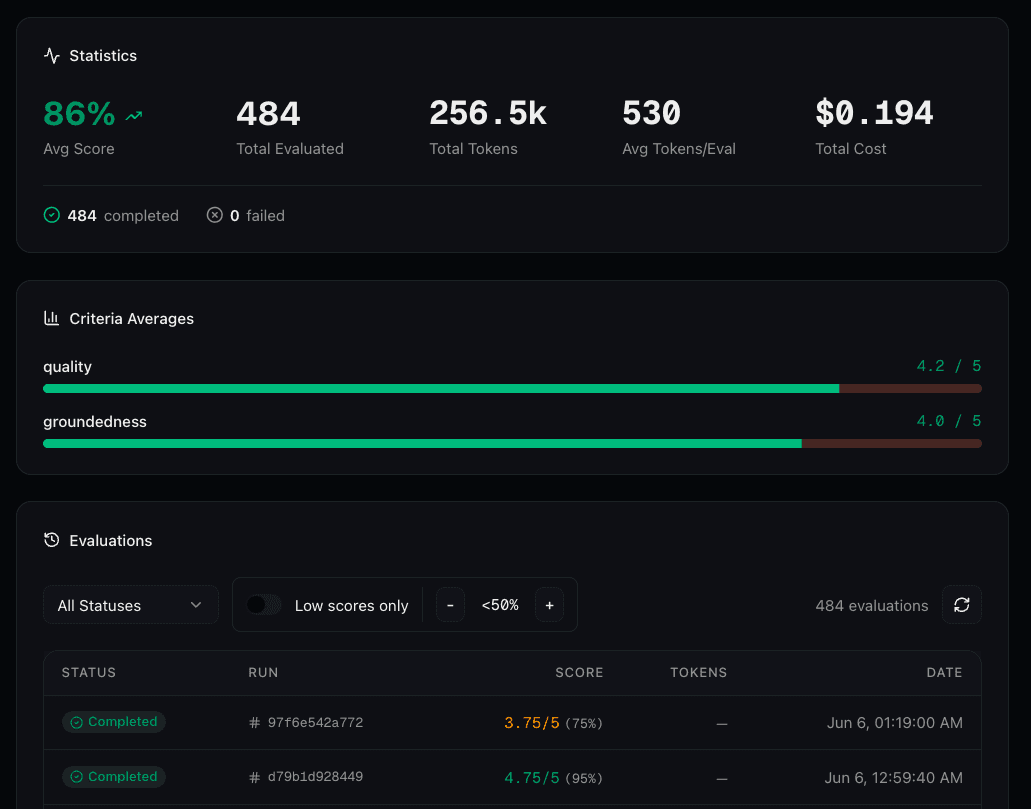
Click any judge in the overview to see its detail page. The page follows the same layout as agent and connector detail pages:
- Statistics: Average score with trend, total evaluated, sample rate, and failed count with completed/failed breakdown
- Criteria Averages: Per-criterion average scores with progress bars reveal which criteria agents struggle with most
- Evaluations list: All judge runs with status, run ID, score, and timestamp. Click any evaluation to open the agent run detail dialog
- Configuration: Agent, model, trigger mode, sample rate, judge prompt, agent-prompt inclusion, criteria, and filters
Run Detail Dialog
When viewing any agent run that has been evaluated, judge results appear at the top of the dialog (before input/output). Each evaluation shows:
- The judge name and evaluation status
- Overall score as a percentage with the raw score
- Per-criteria scores with progress bars and reasoning
- An overall assessment summarizing the evaluation
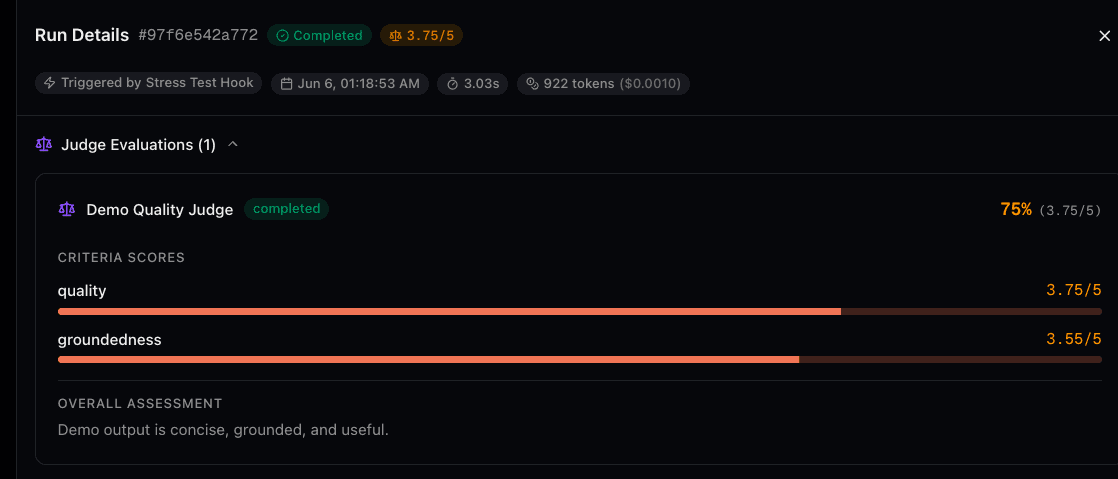
A score pill also appears in the run header next to the status badge, providing a quick quality signal at a glance.
Evaluation Statuses
Each judge evaluation goes through these lifecycle states:
| Status | Description |
|---|---|
| Queued | The evaluation is waiting to be processed. |
| Running | The judge LLM is actively evaluating the run. |
| Completed | Evaluation finished successfully. Scores and reasoning are available. |
| Failed | The evaluation failed. Common causes: invalid model name, authentication error, or rate limiting. The error message is shown on the evaluation. |
Model access
Judges use the same provider/model-name format as the agent YAML. Choose an exact connic/* model with no separate provider key, or use BYOK credentials configured in Project Settings.
All BYOK providers supported for agent execution are also supported for judges, including OpenAI, Anthropic, Google Gemini, Azure OpenAI, AWS Bedrock, Vertex AI, OpenRouter, and any custom OpenAI-compatible providers configured in the Project.
Billing
Each successful judge evaluation consumes one additional connic run unit from Project credit. Failed evaluations consume none.
An LLM agent run start uses one run unit, so an LLM run with one completed judge uses two run units and one with two completed judges uses three. Tool and sequential agents have no run-start unit; their totals contain only completed judge units. Runtime and model-call charges are separate.
| Scenario | connic Run Units |
|---|---|
| LLM agent run, no judge | 1 |
| LLM agent run + 1 judge evaluation | 2 |
| LLM agent run + 2 judge evaluations | 3 |
| LLM agent run + 1 failed evaluation | 1 |
Notifications
Judges support score-based notifications when the overall average evaluation score drops below a configurable threshold. Notification channels (in-app, email) depend on each member's preferences.
Score Alert Threshold
Each judge has an optional Score Alert setting. When enabled, it accepts a threshold percentage (e.g. 60%). A notification is triggered when the judge's average score drops below that threshold.
The alert only fires on the transition: the specific evaluation that causes the average to drop below the threshold triggers the notification. Subsequent evaluations that keep the average below the threshold do not generate additional alerts. If the average recovers above the threshold and drops below again, a new alert will fire.
Average Window
By default, the score alert uses the average of the last 10 completed runs to decide whether to fire. The window can be changed to suit the use case:
- Every run (1): Alerts whenever a single evaluation scores below the threshold. Useful for catching every bad run.
- Last 10 / 50 / 100 runs: Smooths out outliers by averaging over a window of recent evaluations.
- All time: Uses the average across all completed evaluations.
A smaller window reacts faster to quality drops but may be noisier. A larger window or all-time average is more stable but slower to alert.
Notification Channels
Judge score alerts support the same two channels as all other connic notifications:
- In-App: Appears in the notification bell in the top navigation bar. Clicking the notification opens the judge detail page.
- Email: Sends a styled email with the judge name, current average score, threshold, agent name, total evaluations, and a direct link to the judge.
Managing Preferences
Each project member can independently control whether they receive judge score alerts via in-app, email, or both. Go to Settings > Notifications in the project to toggle the Judge Score Low event type. By default, both in-app and email are enabled.