
Our platform uses a database for structured records, Retrieval for semantic search over unstructured content, and sessions for multi-turn conversation history. Each mode is scoped to one environment.
The session drawer lets operators inspect sanitized recorded events and open the runs matched to the exact session identity. This guide explains where each storage mode fits, how to configure session identity and inactivity TTL, and how to debug retained conversations.
Formerly Knowledge Base
Three Persistence Options
All three are scoped per environment. Every environment in the Project gets its own isolated storage, with no cross-environment data leakage.
A quick rule of thumb: data suited to a spreadsheet belongs in the Database. Information normally found through search belongs in Retrieval. If the agent needs to remember the conversation, use Sessions.
Give agents persistent memory
Built-in sessions, a database, and vector retrieval remove the need to stand up and scale separate storage services.
Database: Structured Data and CRUD
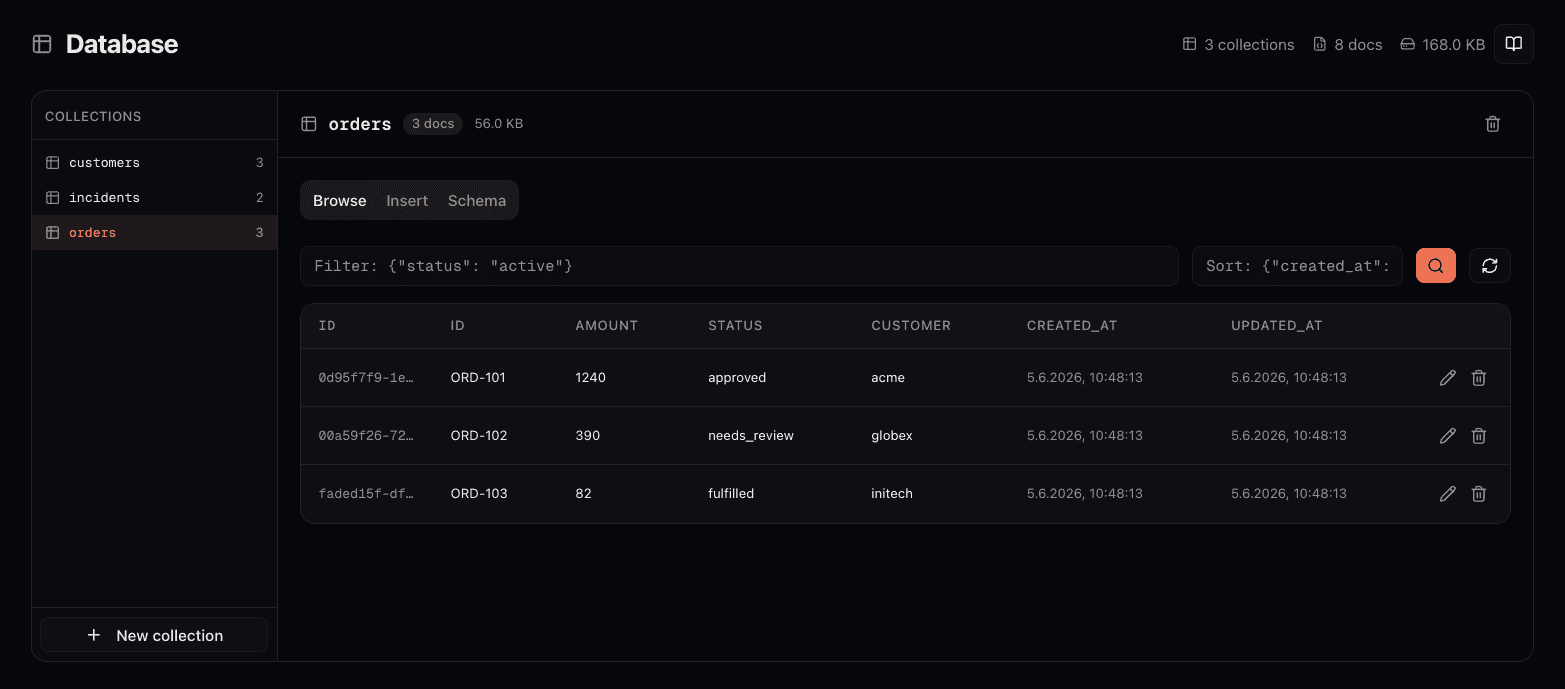
Every environment includes a managed schemaless database. Data is organized into collections, and each document is a free-form JSON object. The database requires neither a fixed schema nor migrations, and it does not need separate hosting. The system adds an auto-generated UUID and _created_at / _updated_at timestamps automatically.
How It Works
- Collections are created automatically when an agent inserts its first document, or manually from the dashboard. Names must be lowercase, start with a letter, and contain only letters, digits, and underscores.
- Documents are free-form. The application defines the fields. The system adds
_id,_created_at, and_updated_atautomatically. Application fields sit alongside these. - Queries use expressive JSON filters. They match exact values, use comparison operators (
$gt,$lt,$in), combine conditions with$andand$or, and query nested fields with dot notation. Queries are indexed and optimized for fast lookups across large collections.
Predefined Tools
The database comes with six predefined tools for use in custom tool wrappers:
| Tool | Purpose |
|---|---|
| db_find | Query documents with filters, sorting, pagination, field projection, and distinct values |
| db_insert | Insert one or more documents. Auto-creates the collection if it doesn't exist |
| db_update | Partially update documents matching a filter. Existing fields are preserved |
| db_delete | Delete documents matching a filter. Requires a non-empty filter for safety |
| db_count | Count documents, optionally matching a filter |
| db_list_collections | List all collections with document counts and sizes |
Example: Order Processing Agent
The recommended approach is to wrap the database primitives in domain-specific functions so the agent calls save_order or get_customer_orders instead of constructing filters manually. Collection names and field mappings are encoded once in the wrapper, not repeated in the system prompt.
from connic.tools import db_find, db_insert, db_update

async def save_order(customer_id: str, items: list[dict], total: float) -> dict:
    """Store a new order in the database.

    Args:
        customer_id: The customer identifier.
        items: List of order items with sku, qty, and price.
        total: Order total amount.
    """
    return await db_insert("orders", {
        "customer_id": customer_id,
        "items": items,
        "total": total,
        "status": "pending"
    })

async def get_customer_orders(customer_id: str) -> list[dict]:
    """Get all orders for a specific customer, newest first.

    Args:
        customer_id: The customer identifier.
    """
    result = await db_find(
        "orders",
        filter={"customer_id": customer_id},
        sort={"_created_at": -1}
    )
    return result.get("documents", [])

async def update_order_status(order_id: str, status: str) -> dict:
    """Update the status of an order.

    Args:
        order_id: The _id of the order to update.
        status: New status (e.g. "shipped", "delivered", "cancelled").
    """
    result = await db_update(
        "orders",
        filter={"_id": order_id},
        update={"status": status}
    )
    return result
Then reference the custom tools in the agent YAML:
version: "1.0"

name: order-processor
type: llm
model: connic/gpt-5.6-luna

system_prompt: |
  You process e-commerce orders. When you receive an order:
  1. Validate the required fields (customer, items, total)
  2. Store it using save_order
  3. When asked about an order, look it up with get_customer_orders

  Always confirm what you stored, including the _id.

tools:
  - order_tools.save_order
  - order_tools.get_customer_orders
  - order_tools.update_order_status
The agent works in domain language. It calls save_order instead of figuring out which collection to use and how to structure the document. The collection is created automatically on the first insert.
Retrieval: Semantic Search and RAG
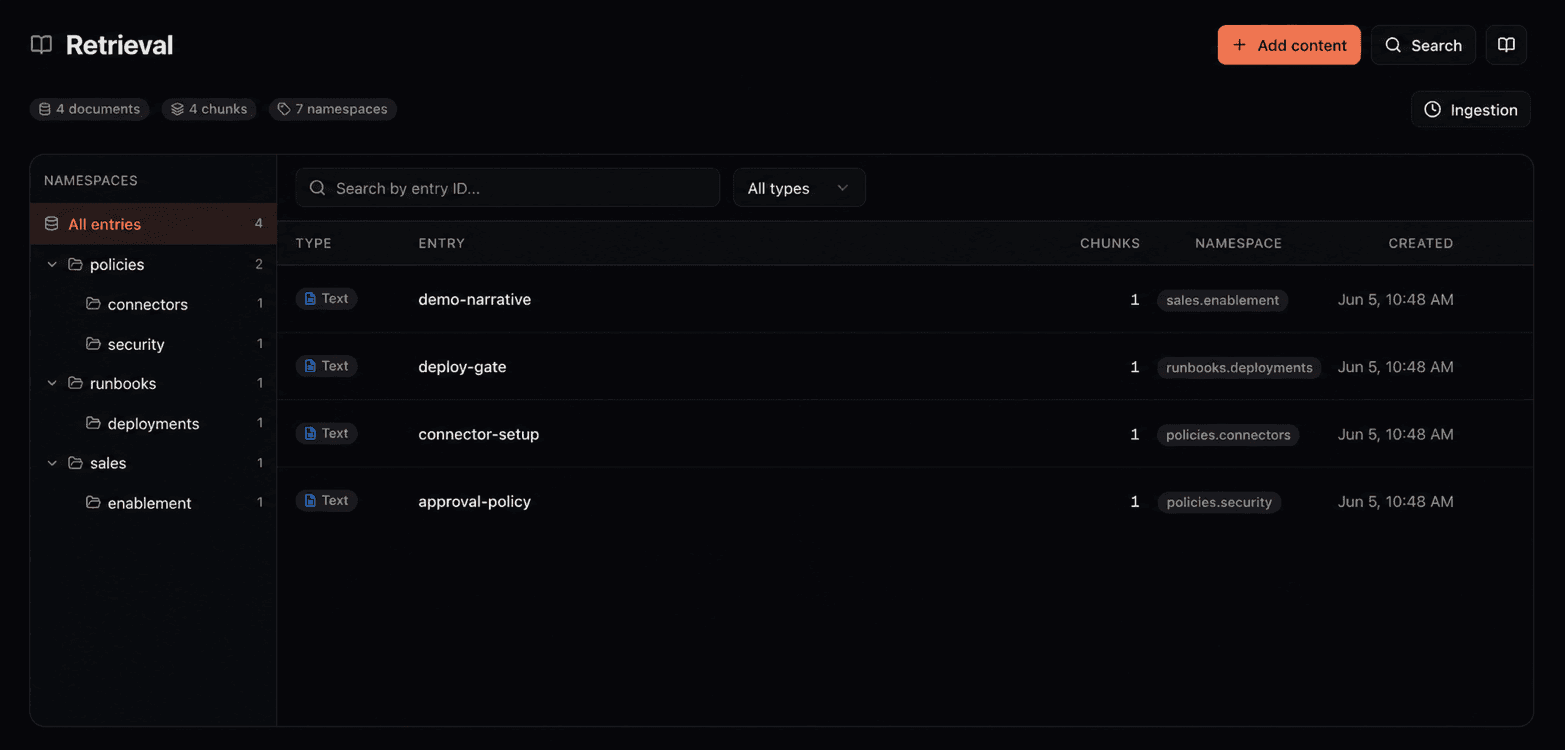
Retrieval stores uploaded documents, builds a semantic search index, and gives agents access to organizational knowledge. Our guide explains how retrieval-augmented generation (RAG) works. Content is automatically chunked and turned into vector embeddings, so a query for "cancellation rules" can surface a document titled "return and refund policy".
How It Works
- Entries are logical documents identified by an
entry_id. Long content is automatically split into searchable chunks. - Namespaces categorize entries. Use them like folders:
policies,products,faq. Entry IDs are unique within a namespace. - Semantic search finds the most relevant chunks based on meaning. A
min_scorethreshold (default 0.3) filters out low-similarity results. Results are ranked by relevance so the best matches come first. - Multiple content types are supported. Upload plain text, PDF files (pages are extracted, chunked, and embedded), and images (analyzed using vision models and the extracted content is embedded).
Predefined Tools
| Tool | Purpose |
|---|---|
| retrieval_query | Semantic search across all entries or within a namespace. Returns the most relevant chunks with similarity scores |
| retrieval_store | Store text content. Automatically chunked and embedded in the background. Supports custom entry IDs and namespaces |
| retrieval_delete | Remove a retrieval entry by its entry ID |
Example: Support Agent with Retrieval
Like with the database, the recommended pattern is to wrap the retrieval tools in domain-specific functions so the agent calls search_solutions instead of working with namespaces and entry IDs directly. The routing logic is encoded once in the wrapper, keeping the agent focused on its task.
from connic.tools import retrieval_query, retrieval_store

async def search_solutions(query: str) -> list[dict]:
    """Search the support retrieval for solutions.

    Args:
        query: Describe the customer's issue.
    """
    result = await retrieval_query(query, namespace="solutions", max_results=3)
    return result.get("results", [])

async def save_solution(content: str, entry_id: str | None = None) -> dict:
    """Store a reusable solution for future tickets.

    Args:
        content: The solution text including the problem description.
        entry_id: Optional stable ID for future updates (e.g. "password-reset-steps").
    """
    return await retrieval_store(
        content, namespace="solutions", entry_id=entry_id
    )

async def search_policies(query: str) -> list[dict]:
    """Look up company policies relevant to a support question.

    Args:
        query: Describe what policy information you need.
    """
    result = await retrieval_query(query, namespace="policies", max_results=3)
return result.get("results", [])version: "1.0"
name: support-agent
type: llm
model: connic/gpt-5.6-terra
system_prompt: |
You are a customer support agent. For every question:
1. Search for existing solutions using search_solutions
2. If needed, check company policies with search_policies
3. If you solve a new problem, store the solution with save_solution
so future tickets benefit from it
tools:
- support_tools.search_solutions
- support_tools.save_solution
- support_tools.search_policiesThe agent no longer needs to know about namespaces or entry IDs. It calls search_solutions("password reset not working") and gets back relevant results. Semantic search handles synonyms and paraphrasing automatically.
Sessions: Persistent Conversation History
Sessions solve a different problem than the database or retrieval. They give an agent memory of the ongoing conversation across multiple requests. Without sessions, every message is independent: the agent starts fresh each time with no awareness of what was said before.
With sessions enabled, the agent maintains conversation history automatically. Messages, responses, and tool activity are recorded and used on the next request with the same session identity. This behavior is configured in YAML instead of through storage tool calls.
Configuration
Add a session block to the agent YAML with two fields:
- key - A source expression that resolves a stable session identifier. Use
context.<field>to read from middleware context, orinput.<field>to read from the request payload. Reuse the same resolved value for every request that belongs to one conversation. - ttl - Optional time-to-live in seconds. This is an inactivity timeout: each update refreshes the expiry. The minimum is 60 seconds; if omitted, sessions never expire.
connic builds the stored session ID from the agent name and resolved key. Storage identifies the row by that ID, the agent application, and the runtime user identity. Choose a key that is unique to each conversation. The dashboard uses all three stored fields when it fetches the session and finds related runs.
Example: Telegram Chatbot
A Telegram bot can use the chat ID from its connector payload to maintain a separate conversation per chat:
version: "1.0"

name: telegram-bot
type: llm
model: connic/gpt-5.6-terra

system_prompt: |
  You are a helpful personal assistant on Telegram.
  You can reference earlier messages in the conversation.

session:
  key: input.chat_id
  ttl: 86400    # 24 hours
Each unique chat_id gets its own session. When the same chat sends another message, the agent receives the retained session context. After 24 hours of inactivity the session expires and the next message starts a new conversation.
Inspect and Debug Persistent Sessions
Open a row under Storage > Sessions to inspect its exact session ID, agent, displayed message count, creation time, last update, and expiry. The conversation view renders the displayable parts of recorded user, assistant, system, and tool messages.
- Recorded text and JSON appear directly in the conversation. Attachments show the file name, MIME type, and size without exposing inline file data.
- Tool names and arguments sit beside recorded results or errors. Reasoning appears only when it was retained unredacted; otherwise the drawer marks it as redacted.
- The related-runs table matches session ID, agent application, and user identity together. Select a row to open the execution behind that conversation.
When to Use Which
The decision depends on the type of data and how the agent needs to access it.
| Scenario | Use | Why |
|---|---|---|
| Track order status and history | Database | Structured records with filters on status, date, customer |
| Answer questions about company policies | Retrieval | Users ask in natural language, need semantic matching |
| Multi-turn chatbot that remembers context | Sessions | Conversation history, not stored data |
| Store user preferences or settings | Database | Key-value lookups by user ID, not semantic search |
| Search product documentation | Retrieval | Long-form text, users search by describing their problem |
| Count active users or aggregate metrics | Database | Requires counting, filtering, and sorting structured data |
| Look up answers from uploaded PDFs | Retrieval | PDFs are chunked, embedded, and searchable by meaning |
| Log events or audit trail | Database | Timestamped records queried by date range and type |
Access Control in Agent YAML
Both the database and retrieval support fine-grained access control directly in the agent YAML. The configuration restricts which collections or namespaces an agent can access and can prevent write or delete operations. Access control applies regardless of whether the agent uses predefined tools directly or through custom wrappers.
Database Access Control
tools:
  - order_tools.save_order
  - order_tools.get_customer_orders

# Restrict database access
database:
  collections:
    orders:
      prevent_delete: true    # can read and write, but not delete
    customers: {}             # full access, no restrictions
  prevent_delete: false       # global default
  prevent_write: false        # global default
When collections is set, the agent can only access those collections. Any attempt to query or write to a collection not in the list is blocked. If collections is omitted, all collections are accessible.
For a simpler configuration, collections can also be passed as a list:
database:
  collections: [orders, customers]
  prevent_delete: true
Retrieval Access Control
Retrieval access control works the same way, but scoped to namespaces instead of collections:
tools:
  - support_tools.search_solutions
  - support_tools.save_solution
  - support_tools.search_policies

# Restrict retrieval access
retrieval:
  namespaces:
    solutions:
      prevent_delete: true    # can query and store, but not delete
    policies:
      prevent_write: true     # read-only access to policies
  prevent_delete: false
  prevent_write: false
This is especially useful in multi-agent setups. A support agent might have read-only access to the policies namespace but full access to the solutions namespace, while an admin agent can manage both.
Managing Storage in the Dashboard
All three storage systems have dedicated pages in the connic dashboard under the Storage menu. Teams can inspect, manage, and debug the data without writing code.
- Create and delete collections
- Browse documents with filters and pagination
- Edit documents inline
- Insert new documents via JSON
- View inferred schema (field types, fill rates)
- Upload text, PDFs, and images
- Run semantic queries to test retrieval
- Browse entries by namespace and content type
- View individual chunks and token counts
- Monitor upload processing jobs
- Filter by agent or search by session ID
- Open sanitized recent conversation events
- Inspect messages, tool activity, file metadata, and reasoning state
- Open runs matched to the exact session identity
- Review lifetime timestamps and delete sessions
The dashboard also shows storage usage on the Billing page, with progress bars for each limit. These bars show how close current usage is to the tier's capacity.
Populating the Retrieval
There are two ways to get content into the retrieval:
- 1.Dashboard upload - Use the Retrieval page to upload files (PDF, TXT, MD, PNG, JPG, GIF, WEBP) or paste text directly. Files are processed asynchronously. Progress appears in the upload jobs list.
- 2.Agent tool calls - Agents with access to
retrieval_store(directly or through a wrapper) can write to the retrieval during runs. This is how agents learn from interactions: they discover a solution and store it for next time.
Best Practices
save_order(customer_id, items, total) instead of db_insert("orders", ...). Collection names, namespaces, and field mappings are encoded once in the wrapper. The agent is less likely to make mistakes and the tool descriptions are more informative.prevent_delete: true on any collection where accidental deletion would be harmful.min_score of 0.3 is a good starting point, but adjust based on the content. If results are too sparse, lower it to 0.2. If results include too much noise, raise it to 0.4. Test with the dashboard's query feature to calibrate.entry_id like password-reset-steps or refund-policy-2026. This makes entries easy to identify in the dashboard and allows updating the same entry by re-storing with the same ID.address.city), but flatter documents are easier for agents to work with. Keep nesting to one or two levels. Deep nesting usually calls for separate collections.Plan Limits
Both the database and retrieval have per-tier limits on collections, documents, and entries. These are enforced automatically and checked before every write operation. If a limit is reached, the agent receives a clear error message.
Current plan limits are listed on the Pricing page. The Billing page in the Project settings shows current usage with progress bars for each limit.
Full Example: Support Agent Using All Three
A complete agent that uses all three. It maintains conversation history with sessions, tracks support tickets in the database, and searches the retrieval for solutions.
version: "1.0"

name: support-agent
type: llm
model: connic/gpt-5.6-terra

system_prompt: |
  You are a customer support agent. For every incoming ticket:

  1. Search for existing solutions using search_solutions
  2. Check company policies if relevant with search_policies
  3. Create a ticket record with save_ticket
  4. If you discover a new solution, save it with save_solution

temperature: 0.5
max_iterations: 15

# Persistent conversation history per customer
session:
  key: context.customer_id
  ttl: 86400

tools:
  - support_tools.search_solutions
  - support_tools.save_solution
  - support_tools.search_policies
  - ticket_tools.save_ticket
  - ticket_tools.get_ticket
  - ticket_tools.update_ticket

# Only allow access to what this agent needs
database:
  collections:
    tickets: {}
  prevent_delete: true

retrieval:
  namespaces:
    solutions: {}
    policies:
      prevent_write: true
      prevent_delete: true
This agent remembers the conversation (sessions), can create and update tickets (database), can search documentation (retrieval), and can save new solutions (retrieval). It can't delete tickets, can't write to the policies namespace, and can't access any collection or namespace outside the ones listed.
Getting Started
Pick the right storage for the data. Structured records go in the database. Unstructured text searched by meaning goes in the retrieval. Conversation memory goes in sessions.
Write custom tool wrappers. Import from
connic.toolsand wrap the predefined tools in domain-specific functions. This gives the agent a cleaner interface and encodes the business logic once.Pre-populate the retrieval. Upload documentation, FAQs, and policy documents via the dashboard before deployment. Agents perform better when the retrieval already has content.
Set access controls. Restrict collections and namespaces per agent. Use
prevent_deleteandprevent_writeto enforce the principle of least privilege.Deploy and verify. Use the dashboard to confirm the agent is reading and writing the right data. Check the Database page for collection contents and the Retrieval page to test semantic queries. Open a persistent session to inspect its conversation and follow one of its related runs into the execution details.
Full references cover database APIs and query filters in the Database Tools documentation, retrieval in the Retrieval Tools documentation, and persistent session configuration. The quickstart guide walks through deploying a first agent.