
AI agents are more useful when they can remember things. A chatbot that forgets every conversation is limited. An order processor that can't save results is pointless. A support agent that can't look up your documentation is guessing.
Connic gives every environment three built-in persistence options: a document database for structured data, a knowledge base for semantic search over unstructured content, and persistent sessions for multi-turn conversation history. They solve different problems, and choosing the right one matters.
This guide explains how each system works, when to use which, and how to configure them in your agent YAML, custom tools, and the dashboard.
Three Persistence Options
All three are scoped per environment. Every environment in your project gets its own isolated storage, with no cross-environment data leakage.
A quick rule of thumb: if you'd look it up in a spreadsheet, use the Database. If you'd Google it, use Knowledge. If you need the agent to remember the conversation, use Sessions.
A built-in document database and vector knowledge base, so you skip standing up and scaling your own.
Try Connic freeDatabase: Structured Data and CRUD
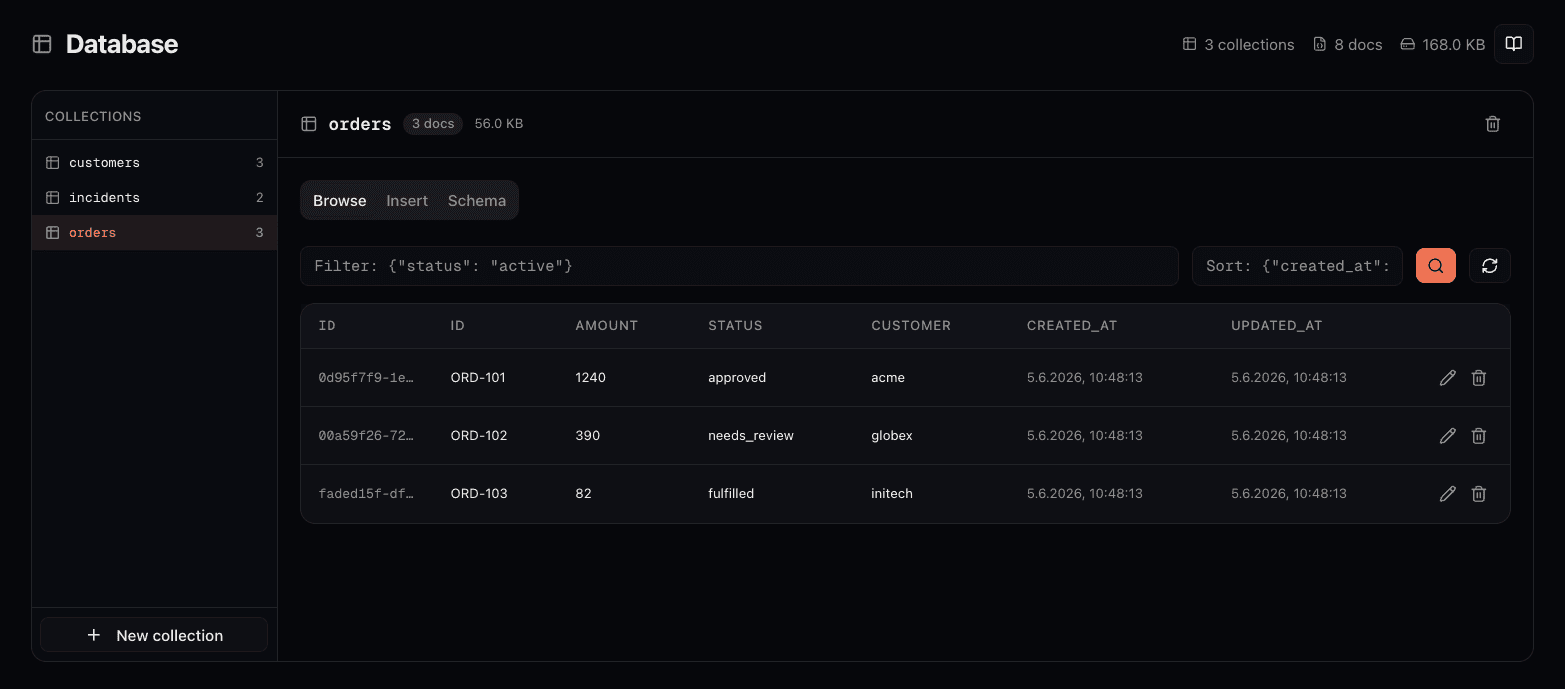
Every environment includes a managed schemaless database. You organize data into collections, and each document is a free-form JSON object. No fixed schema, no migrations, no external hosting required. The system adds an auto-generated UUID and _created_at / _updated_at timestamps for you.
How It Works
- Collections are created automatically when an agent inserts its first document, or manually from the dashboard. Names must be lowercase, start with a letter, and contain only letters, digits, and underscores.
- Documents are free-form. You define the fields. The system adds
_id,_created_at, and_updated_atautomatically. Your fields go alongside these. - Queries use expressive JSON filters. You can match exact values, use comparison operators (
$gt,$lt,$in), combine conditions with$andand$or, and query nested fields with dot notation. Queries are indexed and optimized for fast lookups across large collections.
Predefined Tools
The database comes with six predefined tools that you can use in custom tool wrappers:
| Tool | Purpose |
|---|---|
| db_find | Query documents with filters, sorting, pagination, field projection, and distinct values |
| db_insert | Insert one or more documents. Auto-creates the collection if it doesn't exist |
| db_update | Partially update documents matching a filter. Existing fields are preserved |
| db_delete | Delete documents matching a filter. Requires a non-empty filter for safety |
| db_count | Count documents, optionally matching a filter |
| db_list_collections | List all collections with document counts and sizes |
Example: Order Processing Agent
The recommended approach is to wrap the database primitives in domain-specific functions so the agent calls save_order or get_customer_orders instead of constructing filters manually. Collection names and field mappings are encoded once in the wrapper, not repeated in the system prompt.
from connic.tools import db_find, db_insert, db_update

async def save_order(customer_id: str, items: list[dict], total: float) -> dict:
    """Store a new order in the database.

    Args:
        customer_id: The customer identifier.
        items: List of order items with sku, qty, and price.
        total: Order total amount.
    """
    return await db_insert("orders", {
        "customer_id": customer_id,
        "items": items,
        "total": total,
        "status": "pending"
    })

async def get_customer_orders(customer_id: str) -> list[dict]:
    """Get all orders for a specific customer, newest first.

    Args:
        customer_id: The customer identifier.
    """
    result = await db_find(
        "orders",
        filter={"customer_id": customer_id},
        sort={"_created_at": -1}
    )
    return result.get("documents", [])

async def update_order_status(order_id: str, status: str) -> dict:
    """Update the status of an order.

    Args:
        order_id: The _id of the order to update.
        status: New status (e.g. "shipped", "delivered", "cancelled").
    """
    result = await db_update(
        "orders",
        filter={"_id": order_id},
        update={"status": status}
    )
    return result
Then reference your custom tools in the agent YAML:
version: "1.0"

name: order-processor
type: llm
model: gemini/gemini-2.5-flash

system_prompt: |
  You process e-commerce orders. When you receive an order:
  1. Validate the required fields (customer, items, total)
  2. Store it using save_order
  3. When asked about an order, look it up with get_customer_orders

  Always confirm what you stored, including the _id.

tools:
  - order_tools.save_order
  - order_tools.get_customer_orders
  - order_tools.update_order_status
The agent works in domain language. It calls save_order instead of figuring out which collection to use and how to structure the document. The collection is created automatically on the first insert.
Knowledge Base: Semantic Search and RAG
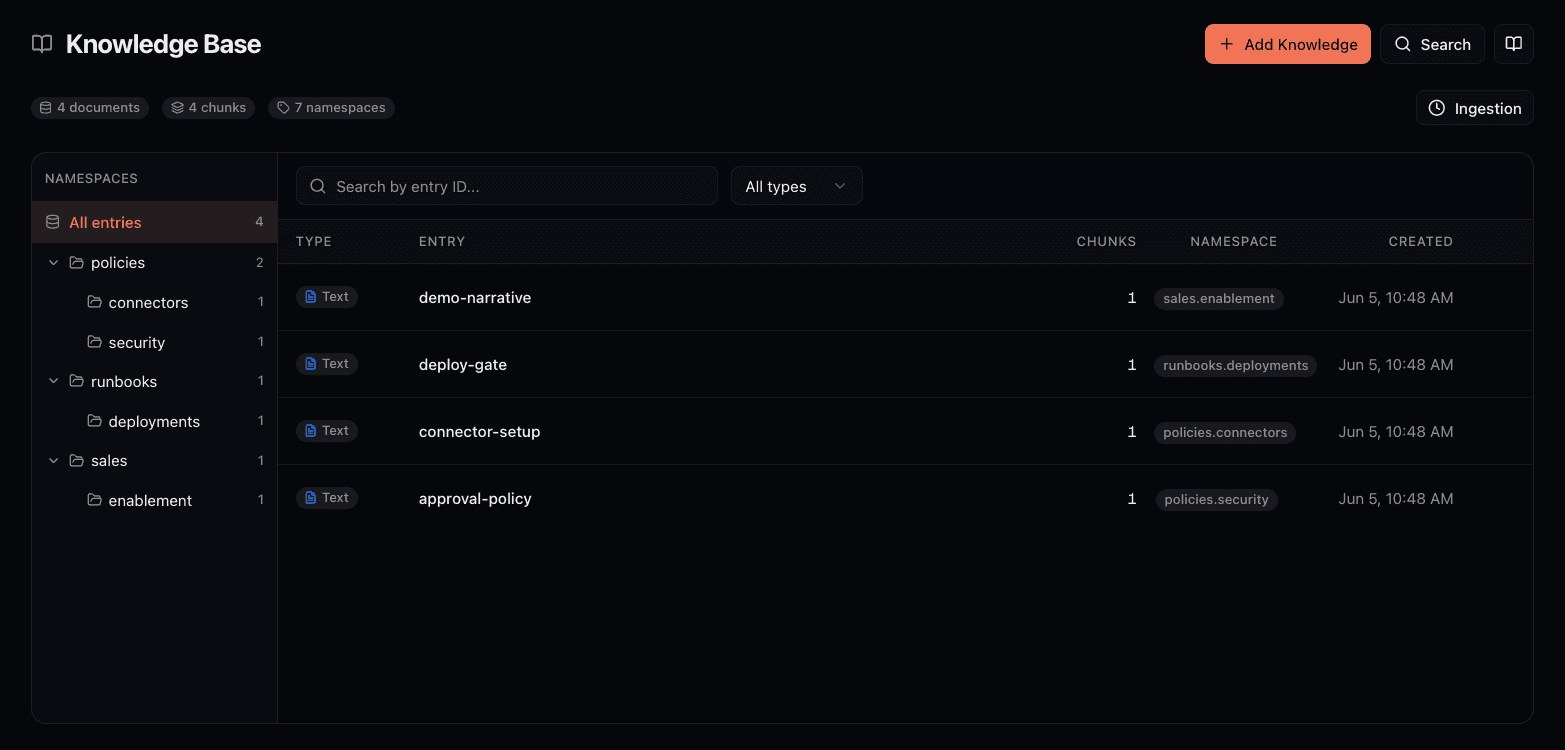
The knowledge base lets you upload documents, build a semantic search index, and give your agents access to your organization's knowledge through retrieval-augmented generation (RAG). Content is automatically chunked and turned into vector embeddings, so a query for "cancellation rules" can surface a document titled "return and refund policy".
How It Works
- Entries are logical documents identified by an
entry_id. Long content is automatically split into searchable chunks. - Namespaces categorize entries. Use them like folders:
policies,products,faq. Entry IDs are unique within a namespace. - Semantic search finds the most relevant chunks based on meaning. A
min_scorethreshold (default 0.7) filters out low-relevance results. Results are ranked by relevance so the best matches come first. - Multiple content types are supported. Upload plain text, PDF files (pages are extracted, chunked, and embedded), and images (analyzed using vision models and the extracted content is embedded).
Predefined Tools
| Tool | Purpose |
|---|---|
| query_knowledge | Semantic search across all entries or within a namespace. Returns the most relevant chunks with similarity scores |
| store_knowledge | Store text content. Automatically chunked and embedded in the background. Supports custom entry IDs and namespaces |
| delete_knowledge | Remove a knowledge entry by its entry ID |
Example: Support Agent with Knowledge
Like with the database, the recommended pattern is to wrap the knowledge tools in domain-specific functions so the agent calls search_solutions instead of working with namespaces and entry IDs directly. The routing logic is encoded once in the wrapper, keeping the agent focused on its task.
from connic.tools import query_knowledge, store_knowledge

async def search_solutions(query: str) -> list[dict]:
    """Search the support knowledge base for solutions.

    Args:
        query: Describe the customer's issue.
    """
    result = await query_knowledge(query, namespace="solutions", max_results=3)
    return result.get("results", [])

async def save_solution(content: str, entry_id: str | None = None) -> dict:
    """Store a reusable solution for future tickets.

    Args:
        content: The solution text including the problem description.
        entry_id: Optional stable ID for future updates (e.g. "password-reset-steps").
    """
    return await store_knowledge(
        content, namespace="solutions", entry_id=entry_id
    )

async def search_policies(query: str) -> list[dict]:
    """Look up company policies relevant to a support question.

    Args:
        query: Describe what policy information you need.
    """
    result = await query_knowledge(query, namespace="policies", max_results=3)
return result.get("results", [])version: "1.0"
name: support-agent
type: llm
model: gemini/gemini-2.5-flash
system_prompt: |
You are a customer support agent. For every question:
1. Search for existing solutions using search_solutions
2. If needed, check company policies with search_policies
3. If you solve a new problem, store the solution with save_solution
so future tickets benefit from it
tools:
- support_tools.search_solutions
- support_tools.save_solution
- support_tools.search_policiesThe agent no longer needs to know about namespaces or entry IDs. It calls search_solutions("password reset not working") and gets back relevant results. Semantic search handles synonyms and paraphrasing automatically.
Sessions: Persistent Conversation History
Sessions solve a different problem than the database or knowledge base. They give an agent memory of the ongoing conversation across multiple requests. Without sessions, every message is independent: the agent starts fresh each time with no awareness of what was said before.
With sessions enabled, the agent maintains conversation history for you. Messages, responses, and tool calls are preserved and replayed on the next request with the same session key. No tools needed: this is configuration-only.
Configuration
Add a session block to your agent YAML with two fields:
- key - A dot-path expression that resolves the session identifier. Use
context.<field>to read from middleware context, orinput.<field>to read from the request payload. - ttl - Optional time-to-live in seconds. Sessions not updated within this period expire. If omitted, sessions never expire.
Example: Telegram Chatbot
A Telegram bot uses the chat ID from middleware context to maintain separate conversations per chat:
version: "1.0"

name: telegram-bot
type: llm
model: gemini/gemini-2.5-flash

system_prompt: |
  You are a helpful personal assistant on Telegram.
  You can reference earlier messages in the conversation.

session:
  key: context.telegram_chat_id
  ttl: 86400    # 24 hours
Each unique telegram_chat_id gets its own session. When the same user sends another message, the agent sees the full conversation history. After 24 hours of inactivity the session expires and the next message starts a new conversation.
Sessions are visible in the dashboard under Storage > Sessions. You can list active sessions, see which agent they belong to, and delete individual sessions.
When to Use Which
The decision comes down to how you need to access the data and what kind of data it is.
| Scenario | Use | Why |
|---|---|---|
| Track order status and history | Database | Structured records with filters on status, date, customer |
| Answer questions about company policies | Knowledge | Users ask in natural language, need semantic matching |
| Multi-turn chatbot that remembers context | Sessions | Conversation history, not stored data |
| Store user preferences or settings | Database | Key-value lookups by user ID, not semantic search |
| Search product documentation | Knowledge | Long-form text, users search by describing their problem |
| Count active users or aggregate metrics | Database | Requires counting, filtering, and sorting structured data |
| Look up answers from uploaded PDFs | Knowledge | PDFs are chunked, embedded, and searchable by meaning |
| Log events or audit trail | Database | Timestamped records queried by date range and type |
Access Control in Agent YAML
Both the database and knowledge base support fine-grained access control directly in your agent YAML. You can restrict which collections or namespaces an agent can access, and prevent write or delete operations. Access control applies regardless of whether the agent uses predefined tools directly or through custom wrappers.
Database Access Control
tools:
  - order_tools.save_order
  - order_tools.get_customer_orders

# Restrict database access
database:
  collections:
    orders:
      prevent_delete: true    # can read and write, but not delete
    customers: {}             # full access, no restrictions
  prevent_delete: false       # global default
  prevent_write: false        # global default
When collections is set, the agent can only access those collections. Any attempt to query or write to a collection not in the list is blocked. If collections is omitted, all collections are accessible.
For a simpler configuration, you can also pass collections as a list:
database:
  collections: [orders, customers]
  prevent_delete: true
Knowledge Access Control
Knowledge access control works the same way, but scoped to namespaces instead of collections:
tools:
  - support_tools.search_solutions
  - support_tools.save_solution
  - support_tools.search_policies

# Restrict knowledge access
knowledge:
  namespaces:
    solutions:
      prevent_delete: true    # can query and store, but not delete
    policies:
      prevent_write: true     # read-only access to policies
  prevent_delete: false
  prevent_write: false
This is especially useful in multi-agent setups. A support agent might have read-only access to the policies namespace but full access to the solutions namespace, while an admin agent can manage both.
Managing Storage in the Dashboard
All three storage systems have dedicated pages in the Connic dashboard under the Storage menu. You can inspect, manage, and debug your data without writing code.
- Create and delete collections
- Browse documents with filters and pagination
- Edit documents inline
- Insert new documents via JSON
- View inferred schema (field types, fill rates)
- Upload text, PDFs, and images
- Run semantic queries to test retrieval
- Browse entries by namespace and content type
- View individual chunks and token counts
- Monitor upload processing jobs
- List active sessions with agent names
- Search sessions by ID
- See last updated and created timestamps
- Delete individual sessions
The dashboard also shows storage usage on the Billing page, with progress bars for each limit. This is where you see how close you are to your tier's capacity.
Populating the Knowledge Base
There are two ways to get content into the knowledge base:
- 1.Dashboard upload - Use the Knowledge page to upload files (PDF, TXT, MD, PNG, JPG, GIF, WEBP) or paste text directly. Files are processed asynchronously. You can track progress in the upload jobs list.
- 2.Agent tool calls - Agents with access to
store_knowledge(directly or through a wrapper) can write to the knowledge base during runs. This is how agents learn from interactions: they discover a solution and store it for next time.
Best Practices
save_order(customer_id, items, total) instead of db_insert("orders", ...). Collection names, namespaces, and field mappings are encoded once in the wrapper. The agent is less likely to make mistakes and the tool descriptions are more informative.prevent_delete: true on any collection where accidental deletion would be harmful.min_score of 0.7 is a good starting point, but adjust based on your content. If results are too sparse, lower it to 0.5. If results include too much noise, raise it to 0.8. Test with the dashboard's query feature to calibrate.entry_id like password-reset-steps or refund-policy-2026. This makes entries easy to identify in the dashboard and allows updating the same entry by re-storing with the same ID.address.city), but flatter documents are easier for agents to work with. Keep nesting to one or two levels. If you find yourself nesting deeply, consider separate collections.Plan Limits
Both the database and knowledge base have per-tier limits on collections, documents, and entries. These are enforced automatically and checked before every write operation. If a limit is reached, the agent receives a clear error message.
Check the Pricing page for current limits per plan, or visit the Billing page in your project settings to see your current usage with progress bars for each limit.
Full Example: Support Agent Using All Three
A complete agent that uses all three. It maintains conversation history with sessions, tracks support tickets in the database, and searches the knowledge base for solutions.
version: "1.0"

name: support-agent
type: llm
model: gemini/gemini-2.5-flash

system_prompt: |
  You are a customer support agent. For every incoming ticket:

  1. Search for existing solutions using search_solutions
  2. Check company policies if relevant with search_policies
  3. Create a ticket record with save_ticket
  4. If you discover a new solution, save it with save_solution

temperature: 0.5
max_iterations: 15

# Persistent conversation history per customer
session:
  key: context.customer_id
  ttl: 86400

tools:
  - support_tools.search_solutions
  - support_tools.save_solution
  - support_tools.search_policies
  - ticket_tools.save_ticket
  - ticket_tools.get_ticket
  - ticket_tools.update_ticket

# Only allow access to what this agent needs
database:
  collections:
    tickets: {}
  prevent_delete: true

knowledge:
  namespaces:
    solutions: {}
    policies:
      prevent_write: true
      prevent_delete: true
This agent remembers the conversation (sessions), can create and update tickets (database), can search documentation (knowledge), and can save new solutions (knowledge). It can't delete tickets, can't write to the policies namespace, and can't access any collection or namespace outside the ones listed.
Getting Started
- 1.Pick the right storage for your data. Structured records go in the database. Unstructured text searched by meaning goes in the knowledge base. Conversation memory goes in sessions.
- 2.Write custom tool wrappers. Import from
connic.toolsand wrap the predefined tools in domain-specific functions. This gives your agent a cleaner interface and encodes your business logic once. - 3.Pre-populate the knowledge base. Upload your documentation, FAQs, and policy documents via the dashboard before you deploy. Agents perform better when the knowledge base already has content.
- 4.Set access controls. Restrict collections and namespaces per agent. Use
prevent_deleteandprevent_writeto enforce the principle of least privilege. - 5.Deploy and verify. Use the dashboard to confirm your agent is reading and writing the right data. Check the Database page for collection contents and the Knowledge page to test semantic queries.
For the full API reference and query filter syntax, check the Database Tools documentation and Knowledge Tools documentation. New to Connic? Start with the quickstart guide to deploy your first agent.