
You've built an AI agent. It's articulate, helpful, and responds in milliseconds. There's just one problem: when a customer asks about your refund policy, your product specs, or your API rate limits, it gives a beautifully written response that's completely made up.
This isn't a bug in your agent. It's a fundamental limitation of how LLMs work. They're trained on internet data, not your company's internal documentation. The fix is called RAG (Retrieval Augmented Generation), and it's simpler to implement than you might think.
The Problem with Generic AI
Watch what happens when you ask a standard AI agent about company-specific information:
User:
What's your refund policy for enterprise customers?
Agent (without knowledge):
I don't have specific information about your company's refund policy. You would need to check with your customer support team or refer to the relevant documentation for details about enterprise refund policies.
Technically correct. Completely useless. Now compare that to an agent with access to your documentation:
User:
What's your refund policy for enterprise customers?
Agent (with knowledge):
Based on your policy documents: Enterprise customers are eligible for a full refund within 60 days of purchase (vs 30 days for standard). For annual contracts, prorated refunds are available after the first 90 days. Contact your account manager to initiate.
Source: company-policies.pdf, page 12
Same question. One agent is useless, the other is actually helpful. The difference? A knowledge base.
Upload your documents and Connic handles chunking, embeddings, and retrieval, so you skip the vector-database setup.
Try Connic freeHow RAG Works (Simply Explained)
RAG stands for Retrieval Augmented Generation. Don't let the jargon intimidate you. The concept is straightforward.
User asks a question
"What's the API rate limit for the Pro plan?"
Search the knowledge base
Find documents semantically related to "API rate limit Pro plan"
Add context to the prompt
Include the relevant documentation snippets with the question
LLM generates grounded response
Answer based on your actual documentation, not internet guesses
The magic word is "semantic" search. Unlike keyword search (which would miss "rate limit" if your docs say "request throttling"), semantic search understands meaning. It finds relevant content even when the words don't match exactly.
The Traditional RAG Stack (And Why It's Painful)
Building RAG from scratch means assembling all of this:
- •Vector database: Pinecone, Weaviate, Qdrant, or pgvector. Each with its own setup, scaling, and pricing model.
- •Embedding model: OpenAI, Cohere, or open-source. Need to choose and configure.
- •Chunking strategy: How do you split documents? By paragraph? By token count? Overlapping chunks?
- •Ingestion pipeline: Watch for new documents, process them, update embeddings.
- •Query pipeline: Search, rank results, format for LLM context.
This easily becomes a 2-3 month project before you even start on the actual agent logic. And then you have infrastructure to maintain forever.
The Managed Alternative: 10 Minutes to RAG
What if the knowledge base was just... built in? That's what Connic provides. The entire setup:
Step 1: Add Knowledge (Dashboard)
Go to your project → Knowledge → Upload documents or paste text. That's it. No vector database to configure, no embedding model to choose, no chunking decisions.
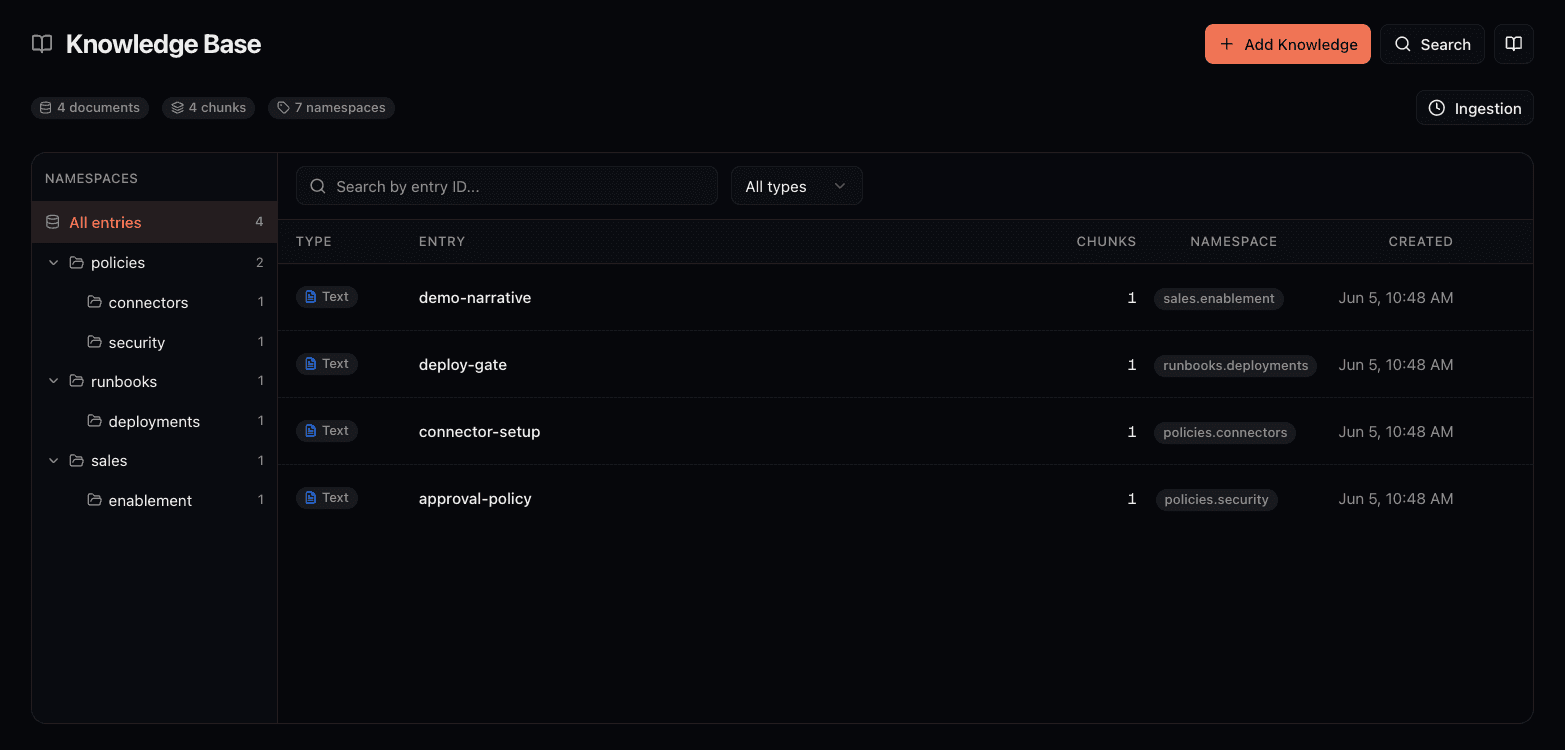
- →Upload PDFs, Word docs, plain text
- →Paste content directly from your wiki or docs
- →Organize with namespaces (e.g., "policies", "api-docs", "faq")
Step 2: Give Your Agent Access
Add the knowledge tool to your agent configuration:
version: "1.0"
name: support-agent
description: "Support agent with knowledge base access"
model: gemini/gemini-2.5-flash
system_prompt: |
  You are a helpful support agent. Always use the knowledge
  base to answer questions about company policies, products,
  and procedures. Cite your sources.
tools:
  - query_knowledge   # Semantic search across all knowledge
  - store_knowledge   # Store new information (optional)
Step 3: Done
Seriously, that's it. Your agent now has access to your company's knowledge and will automatically search it when relevant to user questions.
Advanced: Programmatic Knowledge Storage
Sometimes you want agents to learn as they work. Maybe your support agent discovers new solutions that should be saved for future reference. You can do that with the predefined tools:
Agents with both query_knowledge and store_knowledge tools can learn from their own interactions, building institutional knowledge over time. The agent can save successful resolutions and reference them in future conversations.
Real-World Use Cases
- • Product documentation
- • FAQs and troubleshooting guides
- • Policy documents
- • Previous ticket resolutions
- • Competitor analysis
- • Pricing details and packages
- • Case studies and testimonials
- • Product comparison sheets
- • Company wiki and processes
- • HR policies and benefits info
- • Engineering runbooks
- • Meeting notes and decisions
- • API documentation
- • Code examples and snippets
- • Migration guides
- • Changelog and release notes
Source Citations: Building Trust
One of the biggest problems with AI is trust. Users don't know if the agent is hallucinating or quoting actual documentation. Source citations fix that.
When your agent uses the knowledge base, it can cite exactly where the information came from. Users can verify the answer if needed, and you can track which documents are actually being used.
"Enterprise customers receive a 15% volume discount on annual contracts of $50,000 or more."
Source: pricing-guide-2024.pdf, Section 4.2 (Enterprise Discounts)
Getting Started
Adding a knowledge base to your agents takes about 10 minutes:
- 1.Go to your project dashboard → Knowledge tab
- 2.Upload your documents or paste content
- 3.Add
query_knowledgeto your agent's tools - 4.Deploy and test
No vector database to configure, no embedding models to choose, no chunking strategies to debate. Just upload your content and let your agents use it.
Check out our knowledge base feature page for an interactive demo, or dive into the quickstart guide to get started.