
A newly deployed AI agent processed 500 requests yesterday. Yet the team does not know how many tokens it consumed, what it cost, or why 12% of those requests failed silently. That is the observability problem.
Traditional APM tools were built for request-response patterns: latency percentiles, error rates, throughput. AI agents don't fit that mold. They make multiple LLM calls per request, token usage varies wildly based on context, and costs can spike 10x when users send longer inputs. Agentic workloads need purpose-built observability.
What Makes Agent Observability Different
When a user sends a message to an agent, a lot happens behind the scenes. The agent might:
- 1.Query a retrieval for context (RAG retrieval)
- 2.Make an initial LLM call to reason about the request
- 3.Execute 2-3 tool calls (API requests, database queries)
- 4.Make another LLM call to synthesize results
- 5.Optionally call another agent for specialized tasks
Each step consumes tokens, and each step can fail. Traditional metrics like "average response time" hide all that. Each phase needs granular visibility.
Per-step traces, token usage, and cost-per-run come built in, so every agent run can be debugged and priced.
Get started freeThe Four Pillars of Agent Observability
Building a First Dashboard
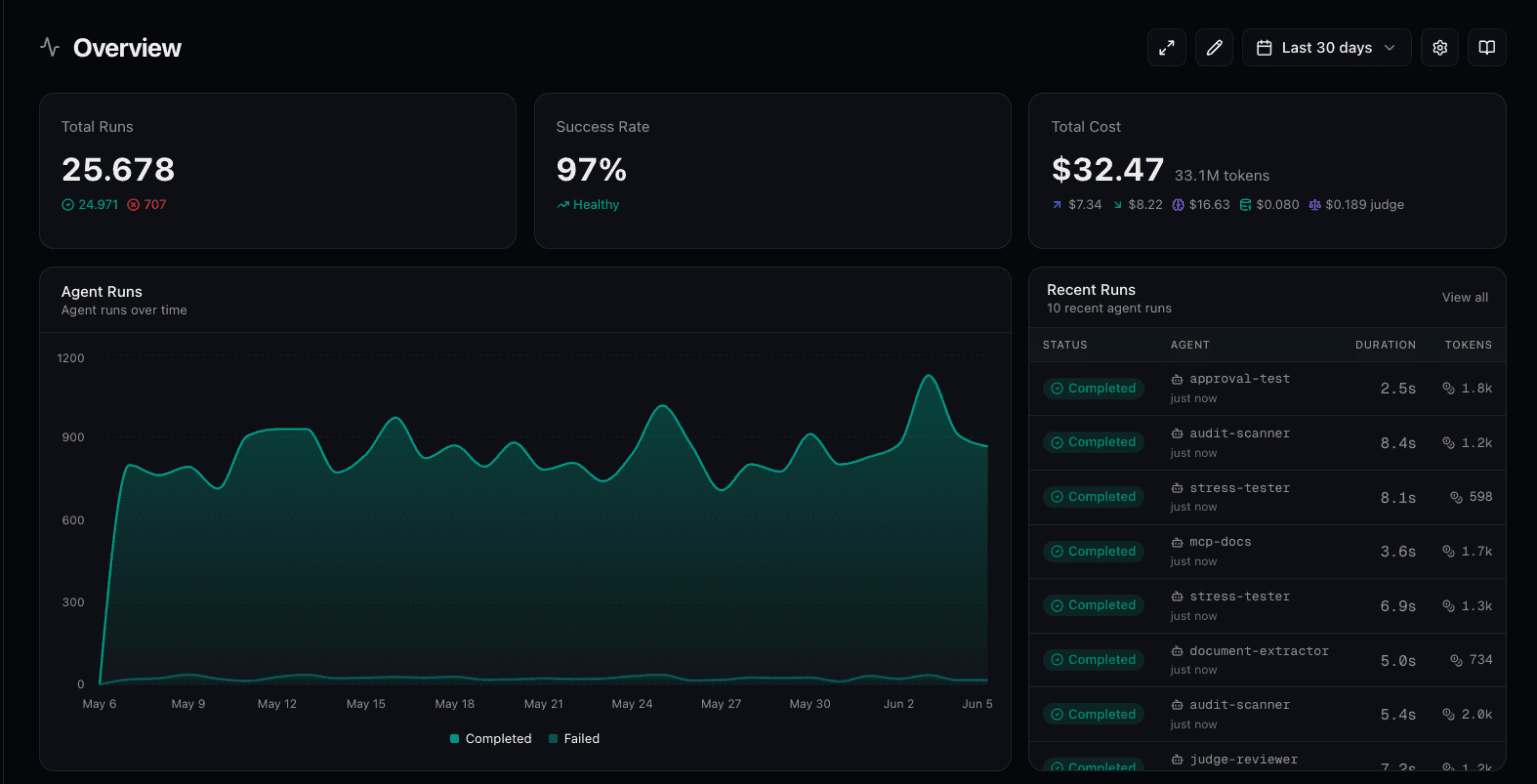
Connic creates a default dashboard when a first Project starts, but the real value comes from customizing it. Build a dashboard around the metrics the team actually reviews:
Navigate to Observability
In the Project sidebar, click Observability. The default dashboard has pre-configured widgets for total runs, success rate, token usage, and costs.
Enter Edit Mode
Click the Edit button in the top right. Edit mode supports dragging and dropping widgets as well as adding, removing, or configuring them.
Add Widgets
Click Add Widget to choose from three widget types:
Stat Cards
Single metric displays. Choose from: Total Runs, Success Rate, Failed Runs, Tool Calls, Total Tokens, Input/Output Tokens, Token Cost, Input/Output Token Cost, Average Token Cost per Run, Avg Tokens per Run.
Area Charts
Time-series visualizations. Track agent runs (completed vs failed), token usage (input vs output over time), or token cost trends.
Logs Lists
Recent activity feeds. Show agent runs or connector runs with status, duration, and direct links to detailed traces.
Filter by Agent
Most widgets support filtering by agent. For multiple agents with different purposes, create separate widgets per agent, or compare them side-by-side in the same chart.
Understanding Token Economics
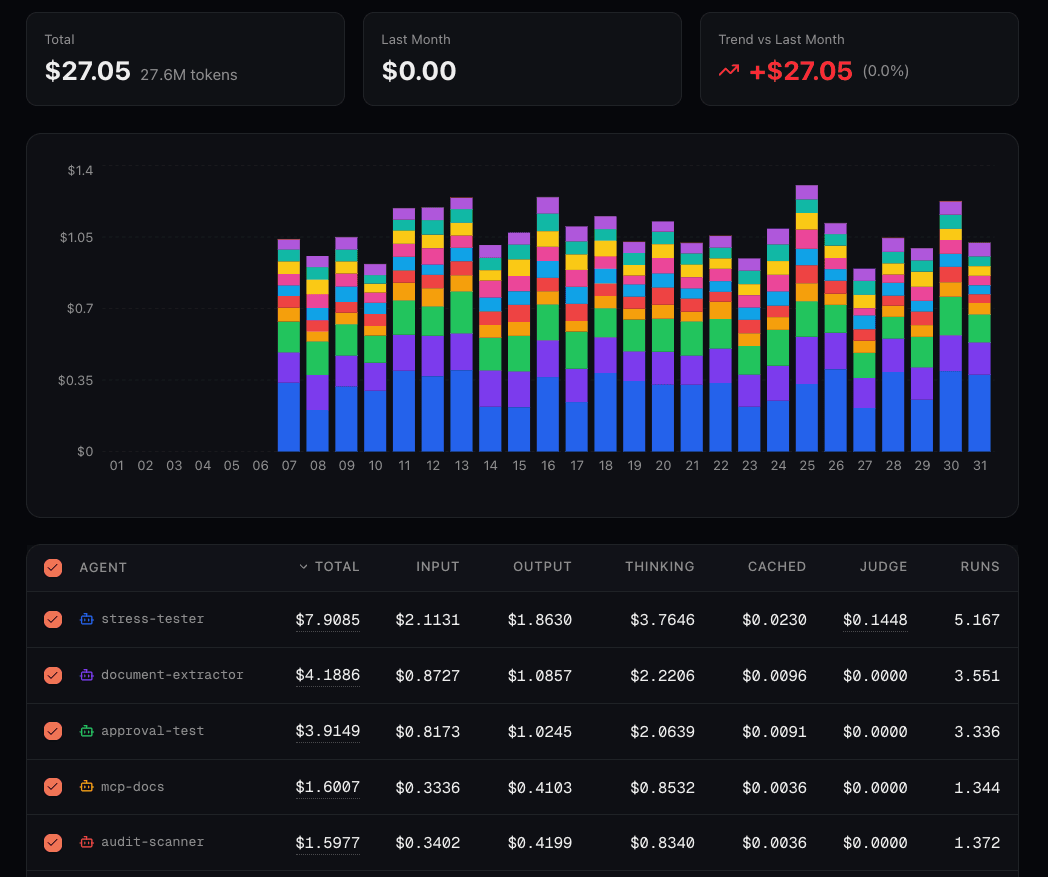
Token usage drives LLM costs, but not all tokens are equal:
Output tokens typically cost 3–8x more than input tokens across major providers. For example, OpenAI's current API pricing lists up-to-date ratios across its model tiers. If costs look high, check output usage first. Long, verbose responses are usually the culprit.
Setting Up Model Pricing
Token counts are useful, but dollar amounts are actionable. To convert tokens to costs, configure pricing for the models used by the agents.
Global Defaults
Connic includes global pricing for popular models out of the box. These appear with a "global" badge in the pricing settings, so no configuration is needed to track costs for common models like GPT, Claude Sonnet, or Gemini.
Custom Model Pricing
For fine-tuned or self-hosted models, or any price that differs from the defaults, navigate to Settings > Token Pricing and click Add Pricing.
# Exact model match
openai/gpt-5-mini
anthropic/claude-haiku-4-5
gemini/gemini-2.5-flash

# Regex pattern for model families
openai/gpt-5.*          # Matches all GPT-5 variants
anthropic/claude-.*      # All Claude models
gemini/gemini-.*         # All Gemini models
All pricing is per 1 million tokens. Project-level pricing can override global defaults with custom costs for specific use cases without affecting other Projects.
Volume-Based Pricing Tiers
Some providers use progressive pricing tiers as token volume rises. Configure each threshold so tokens above it use the corresponding rate:
Multi-Dashboard Workflows
One dashboard rarely fits all needs. Different perspectives benefit from separate dashboards:
- -An Executive Overview provides high-level cost and success metrics for weekly reviews
- -A Debugging Dashboard collects recent runs, failure rates, and logs for on-call engineers
- -A Cost Optimization view combines token breakdowns and cost trends for budget planning
- -An Agent Comparison shows side-by-side metrics for A/B testing different agent configurations
A default dashboard can load on entry, with a separate default time range for each dashboard. The executive overview might show 30 days while the debugging dashboard shows the last hour.
Real-Time Monitoring
Dashboards auto-refresh every 10 seconds, and a "Last updated" indicator shows how fresh the data is. During incident response, failures can be watched live without hitting refresh.
Common Patterns and Anti-Patterns
Getting Started
Observability is available in all Connic projects. To start:
Deploy an agent and run a few requests to generate data
Navigate to Observability in the Project
Review the default dashboard, then customize it for the relevant requirements
Configure model pricing in Settings > Token Pricing for accurate cost tracking
Observability shows what the agents did and what it cost. To measure whether the output met the defined criteria, pair it with automated agent scoring: an LLM judge grades every run against those criteria and tracks quality trends over time.
Check out the quickstart guide to deploy a first agent, or explore the agent documentation to learn about advanced configurations.